🏷 Crisp Upscale is 20% off — 2 credits instead of 2.5Try it•🏷 Creative Upscale is 20% off — 50 credits instead of 62.5Try it•🏷 Clarity Upscaler is 20% off — 6 credits a megapixel instead of 7.5Try it•🏷 Qwen Edit 2511 is 20% off — 6 credits instead of 7.5Try it•🏷 FLUX Erase is 20% off — 10 credits instead of 12.5Try it•🏷 Seedream 4.5 Edit is 20% off — 8 credits instead of 10Try it•🏷 Seedream 5 Flash Edit is 20% off — 6 credits instead of 7.5Try it•🏷 Nano Banana 2 Edit is 20% off — 16 credits instead of 20Try it•🏷 Nano Banana 2.1 Edit is 20% off — 10 credits instead of 12.5Try it•🏷 FLUX.2 Klein 9B Edit is 21% off — 5 credits instead of 6.3Try it•🏷 Ideogram Character is 20% off — 30 credits instead of 37.5Try it•🏷 GPT Image 2 Edit is 20% off — 43 credits instead of 53.8Try it•🏷 GPT Image 2.5 Flare Edit is 20% off — 11 credits instead of 13.8Try it•🏷 GPT Image 2.5 Sunburst Edit is 20% off — 11 credits instead of 13.8Try it•🏷 Meta Muse Edit is 20% off — 2 credits instead of 2.5Try it•🏷 Grok Imagine Edit is 21% off — 5 credits instead of 6.3Try it•🏷 Bria Expand is 20% off — 8 credits instead of 10Try it•🏷 Ideogram Reframe is 20% off — 12 credits instead of 15Try it•🏷 Topaz Video Upscale is 20% off — 4 credits a second instead of 5Try it•🏷 FLUX Video Upscale is 20% off — 28 credits a second instead of 35Try it•🏷 Grok Imagine Extend is 20% off — 20 credits a second instead of 25Try it•🏷 Lucy Edit Pro is 20% off — 30 credits a second instead of 37.5Try it•🏷 Kling O3 4K Edit is 20% off — 84 credits a second instead of 105Try it•🏷 Luma Modify is 20% off — 70 credits a second instead of 87.5Try it•✨ New: Nano Banana 2.1Try it•✨ New: Grok Video 1.5 LiteTry it•Credits never expire — whatever you buy rolls over foreverSee pricing•
🏷 Crisp Upscale is 20% off — 2 credits instead of 2.5Try it•🏷 Creative Upscale is 20% off — 50 credits instead of 62.5Try it•🏷 Clarity Upscaler is 20% off — 6 credits a megapixel instead of 7.5Try it•🏷 Qwen Edit 2511 is 20% off — 6 credits instead of 7.5Try it•🏷 FLUX Erase is 20% off — 10 credits instead of 12.5Try it•🏷 Seedream 4.5 Edit is 20% off — 8 credits instead of 10Try it•🏷 Seedream 5 Flash Edit is 20% off — 6 credits instead of 7.5Try it•🏷 Nano Banana 2 Edit is 20% off — 16 credits instead of 20Try it•🏷 Nano Banana 2.1 Edit is 20% off — 10 credits instead of 12.5Try it•🏷 FLUX.2 Klein 9B Edit is 21% off — 5 credits instead of 6.3Try it•🏷 Ideogram Character is 20% off — 30 credits instead of 37.5Try it•🏷 GPT Image 2 Edit is 20% off — 43 credits instead of 53.8Try it•🏷 GPT Image 2.5 Flare Edit is 20% off — 11 credits instead of 13.8Try it•🏷 GPT Image 2.5 Sunburst Edit is 20% off — 11 credits instead of 13.8Try it•🏷 Meta Muse Edit is 20% off — 2 credits instead of 2.5Try it•🏷 Grok Imagine Edit is 21% off — 5 credits instead of 6.3Try it•🏷 Bria Expand is 20% off — 8 credits instead of 10Try it•🏷 Ideogram Reframe is 20% off — 12 credits instead of 15Try it•🏷 Topaz Video Upscale is 20% off — 4 credits a second instead of 5Try it•🏷 FLUX Video Upscale is 20% off — 28 credits a second instead of 35Try it•🏷 Grok Imagine Extend is 20% off — 20 credits a second instead of 25Try it•🏷 Lucy Edit Pro is 20% off — 30 credits a second instead of 37.5Try it•🏷 Kling O3 4K Edit is 20% off — 84 credits a second instead of 105Try it•🏷 Luma Modify is 20% off — 70 credits a second instead of 87.5Try it•✨ New: Nano Banana 2.1Try it•✨ New: Grok Video 1.5 LiteTry it•Credits never expire — whatever you buy rolls over foreverSee pricing•
What solorender does, and where to find everything.
solorender is a studio for making images, video and sound with the best AI models in one place. You write what you want, pick a model (or let Auto pick), and pay per creation with credits, at prices shown up front. Plans are optional: you can also buy credits outright, with no subscription.
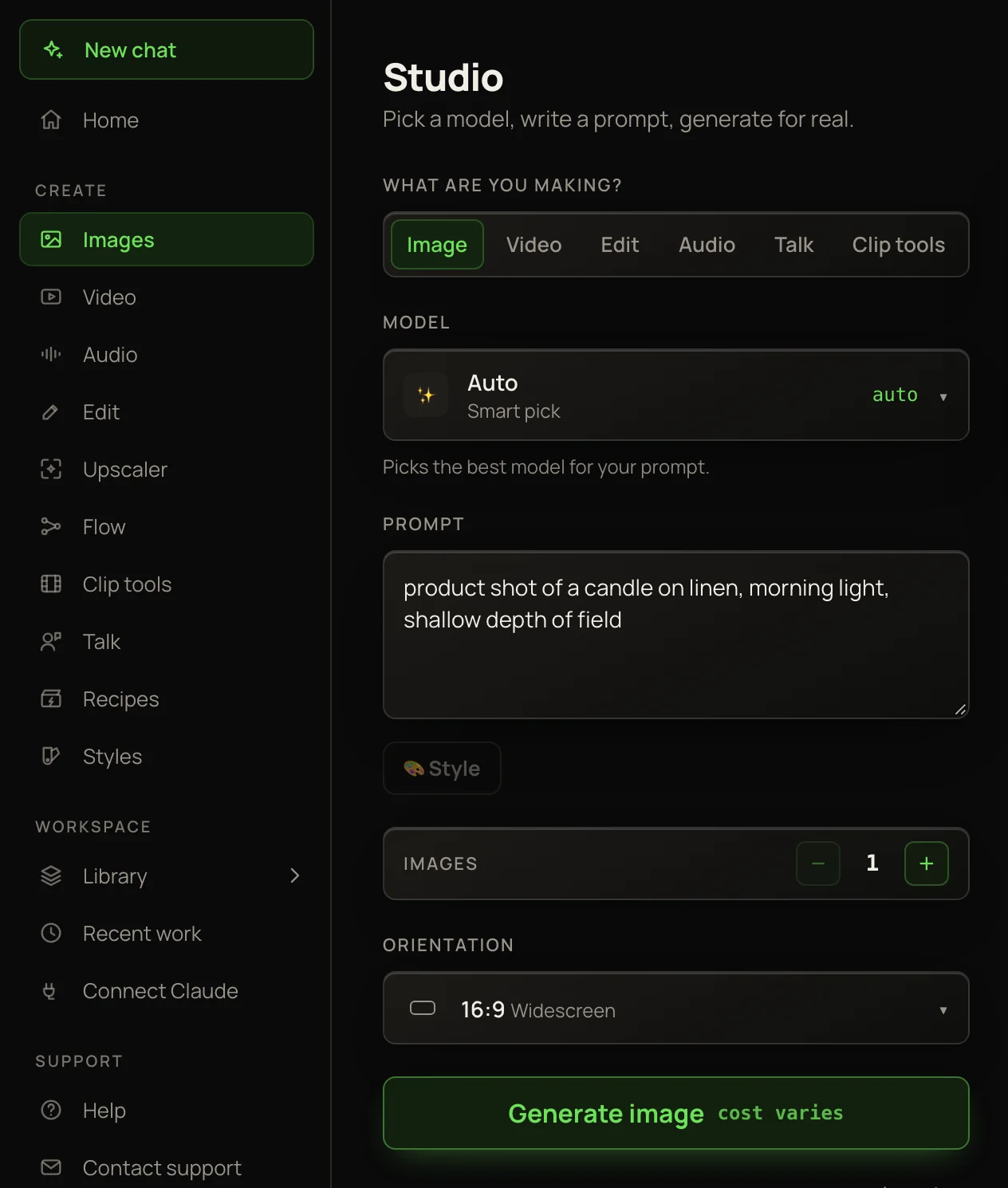
The Studio, opened with New chat. The sidebar on the left takes you to every tool.
Find your way around
Use the sidebar on the left to get around. The top bar adds shortcuts to Home, Studio and Flow, and shows your credit balance.
Home
Type an idea and press Create →, or start from a card under Or start with a tool. Your newest work is at the bottom.
Studio
Where you make things. New chat at the top of the sidebar opens it ready for a picture. Each item under Create — Images, Video, Audio, Edit, Upscaler, Clip tools, Talk — opens it on that tool.
Flow
A canvas of connected boxes. Build a chain of steps once, then re-run any part of it. See What Flow is.
Recipes
Ready-made ads, presenter videos and scenes. Drop in what the recipe asks for, press its button, and get the finished result. See The Recipes page.
Styles
Ready-made looks, free for everyone. Use one with 🎨 Style in the Studio, or type its @name in a prompt.
Library
Everything you make, saved automatically. Its menu holds All media, Collections, Favorites and your saved characters, props, places, styles and scenes. See Your Library.
Recent work
Jumps to the newest things you’ve made, at the bottom of Home.
Connect Claude
Lets Claude, or another AI agent that supports MCP, use your account from a chat — to generate, build flows and render films.
Help and Contact support
This help center, and the page with our support email.
The Studio’s six lanes
At the top of the Studio, What are you making? switches between six lanes. Each lane has its own models and controls.
Upscale, extend or edit a finished video. See Clip tools.
Two rules that never change
You see the price first
Each run’s cost is on its button before you press it. On Auto the button says cost varies, because Auto picks the model when you press it — the result shows what it cost. A talking photo from a typed script and the Clarity Upscaler show ≈: an estimate until the exact length or size is known.
New accounts start with 100 credits — enough for a handful of pictures, which start at 1 credits each. Video costs more, from 38 credits a clip.
To buy more, use the See plans & credits link on Home. It opens Plans & credits, where every plan and pack is sold. Your balance in the top bar opens Credits & billing: your balance, your plan, and every credit in and out. See How credits work.
On a phone
The sidebar is hidden on small screens. Tap ☰ in the top bar for Home, Studio, Flow, Recent work, Library and Help. Every lane is a tab inside the Studio, so Video, Audio, Talk and the rest are one tap away there.