Make something with the Recipes page
Pick a recipe, add your photo and press one button. No canvas, no models to choose.
The Recipes page runs a whole recipe for you. Pick one, give it what it asks for, and press the button. It runs each step, shows you the results, and joins the clips into a film when the recipe needs one.
Find a recipe
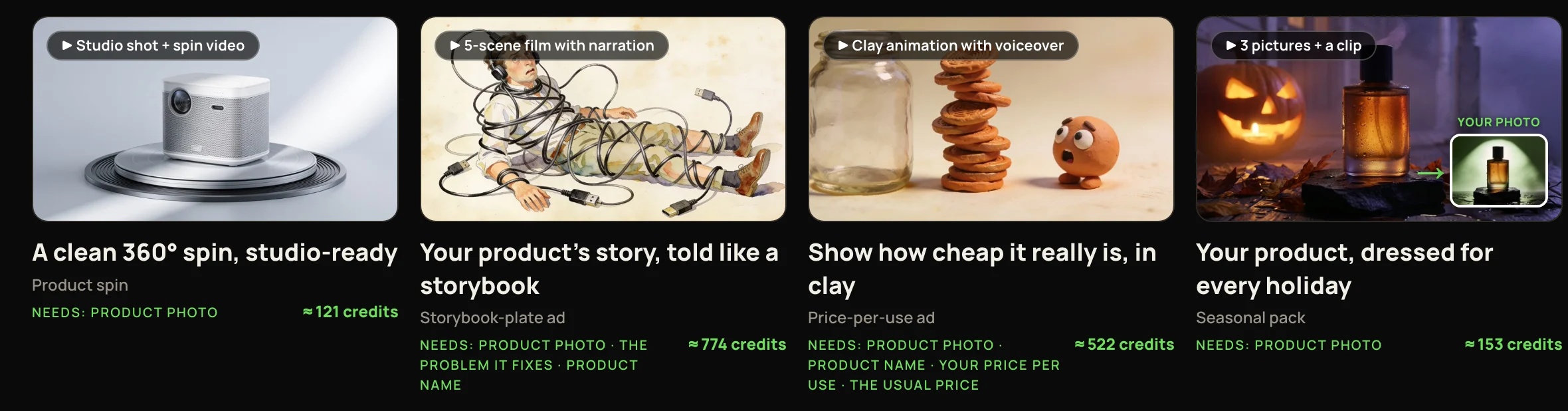
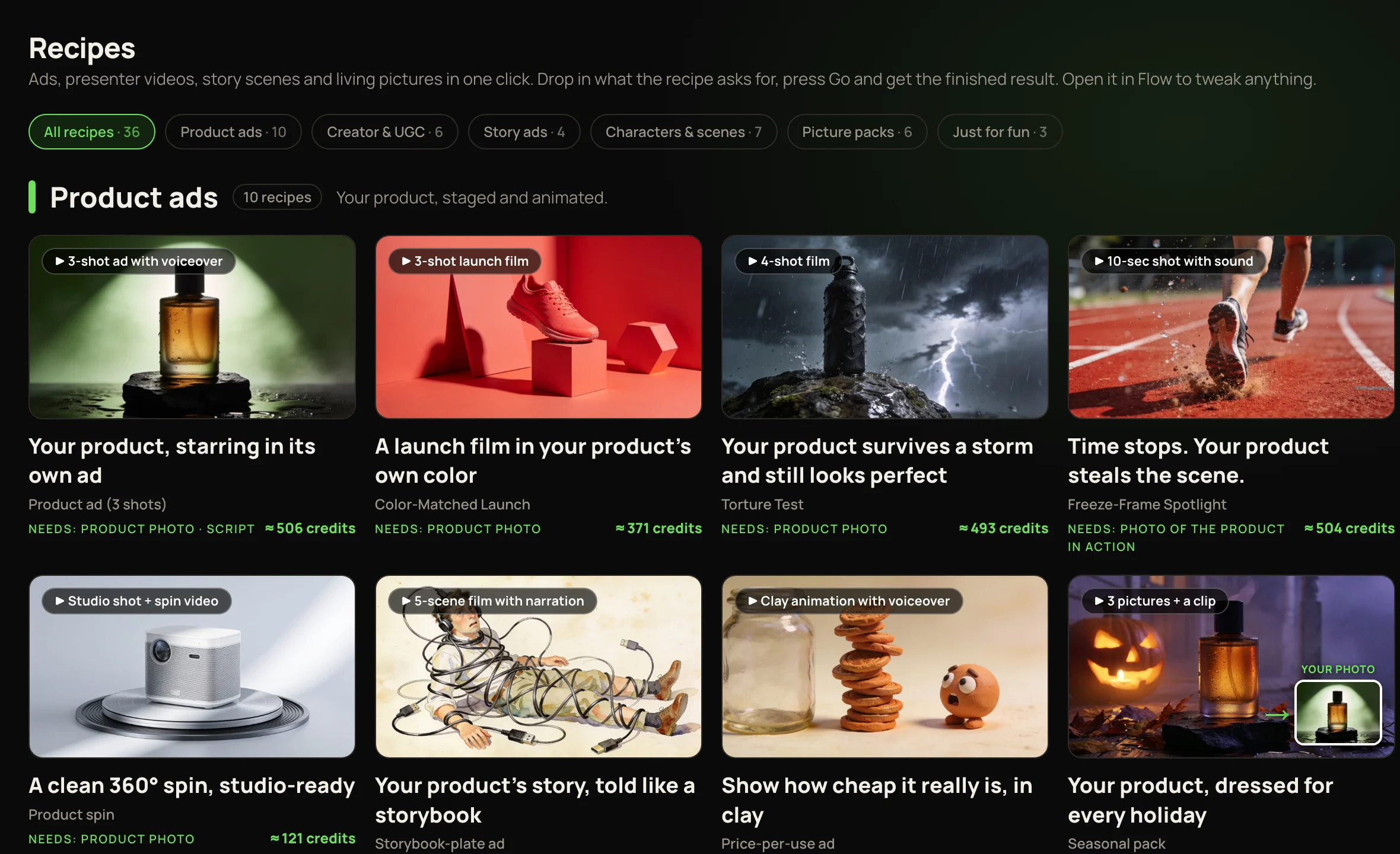
Click Recipes in the sidebar. The chips at the top — All recipes, Product ads, Picture packs and the rest — filter by kind, with the number of recipes beside each. Under All recipes, each kind gets its own section with a short description. Every card tells you four things:
Some cards have a small framed photo in the corner with a green arrow. That’s the photo that went in, and the big picture is what the recipe really made from it.
Fill it in
Click a card. The left side asks only for what that recipe uses:
Press the button
The button names what you’re making — Make my ad, Make my video, Make my pictures, Make it, or a recipe’s own words, like Bring it to life. It shows the estimated total. If something is missing, or your balance is too low, a message says what to fix before anything is charged.
After a run the button reads Make it again. It runs every step again, and charges again.
Watch it run
The steps appear on the right and run one after another. Each step charges as it runs, shows its price and model, and shows its result as soon as it’s done. The dot beside each step shows where it is:
A failed step stops the run. Press ↻ Retry from step N to carry on; the finished steps are kept.
Your results
Every picture, voice and clip is saved to your Library as it’s made, under Not in a collection. If the film fails to render, its charge is refunded; press ↻ Render again to try again.
The finished film is saved to your Library too, named after the recipe — so it’s there even if you close the page.
Tweak it in Flow
- 1Under your results, click Open in Flow to tweak. The Flow page opens on your list of flows.
- 2Click the card Unsaved canvas · this browser only. Your recipe is there, wired up, with your photos, words and results in place.
- 3Change a prompt or a model and press that box’s ▶ Run. Only that box charges.
- 4To keep it, click Save to a project…, name it, pick a collection and click Save flow.