🏷 Crisp Upscale is 20% off — 2 credits instead of 2.5Try it•🏷 Creative Upscale is 20% off — 50 credits instead of 62.5Try it•🏷 Clarity Upscaler is 20% off — 6 credits a megapixel instead of 7.5Try it•🏷 Qwen Edit 2511 is 20% off — 6 credits instead of 7.5Try it•🏷 FLUX Erase is 20% off — 10 credits instead of 12.5Try it•🏷 Seedream 4.5 Edit is 20% off — 8 credits instead of 10Try it•🏷 Seedream 5 Flash Edit is 20% off — 6 credits instead of 7.5Try it•🏷 Nano Banana 2 Edit is 20% off — 16 credits instead of 20Try it•🏷 Nano Banana 2.1 Edit is 20% off — 10 credits instead of 12.5Try it•🏷 FLUX.2 Klein 9B Edit is 21% off — 5 credits instead of 6.3Try it•🏷 Ideogram Character is 20% off — 30 credits instead of 37.5Try it•🏷 GPT Image 2 Edit is 20% off — 43 credits instead of 53.8Try it•🏷 GPT Image 2.5 Flare Edit is 20% off — 11 credits instead of 13.8Try it•🏷 GPT Image 2.5 Sunburst Edit is 20% off — 11 credits instead of 13.8Try it•🏷 Meta Muse Edit is 20% off — 2 credits instead of 2.5Try it•🏷 Grok Imagine Edit is 21% off — 5 credits instead of 6.3Try it•🏷 Bria Expand is 20% off — 8 credits instead of 10Try it•🏷 Ideogram Reframe is 20% off — 12 credits instead of 15Try it•🏷 Topaz Video Upscale is 20% off — 4 credits a second instead of 5Try it•🏷 FLUX Video Upscale is 20% off — 28 credits a second instead of 35Try it•🏷 Grok Imagine Extend is 20% off — 20 credits a second instead of 25Try it•🏷 Lucy Edit Pro is 20% off — 30 credits a second instead of 37.5Try it•🏷 Kling O3 4K Edit is 20% off — 84 credits a second instead of 105Try it•🏷 Luma Modify is 20% off — 70 credits a second instead of 87.5Try it•✨ New: Nano Banana 2.1Try it•✨ New: Grok Video 1.5 LiteTry it•Credits never expire — whatever you buy rolls over foreverSee pricing•

Your Library

Everything you make is saved here on its own — find it, play it, favorite it or clear it out.

Every picture, video clip, voiceover and music track you make is saved to your Library automatically. That covers the Studio, Flow, the Recipes page, and Claude if you connect it. There’s nothing to save by hand.

Where
Library in the left menu, under Workspace
Saved for you
Pictures, video clips, voiceovers, music and finished films
Not saved
Files you upload
Cost
Free
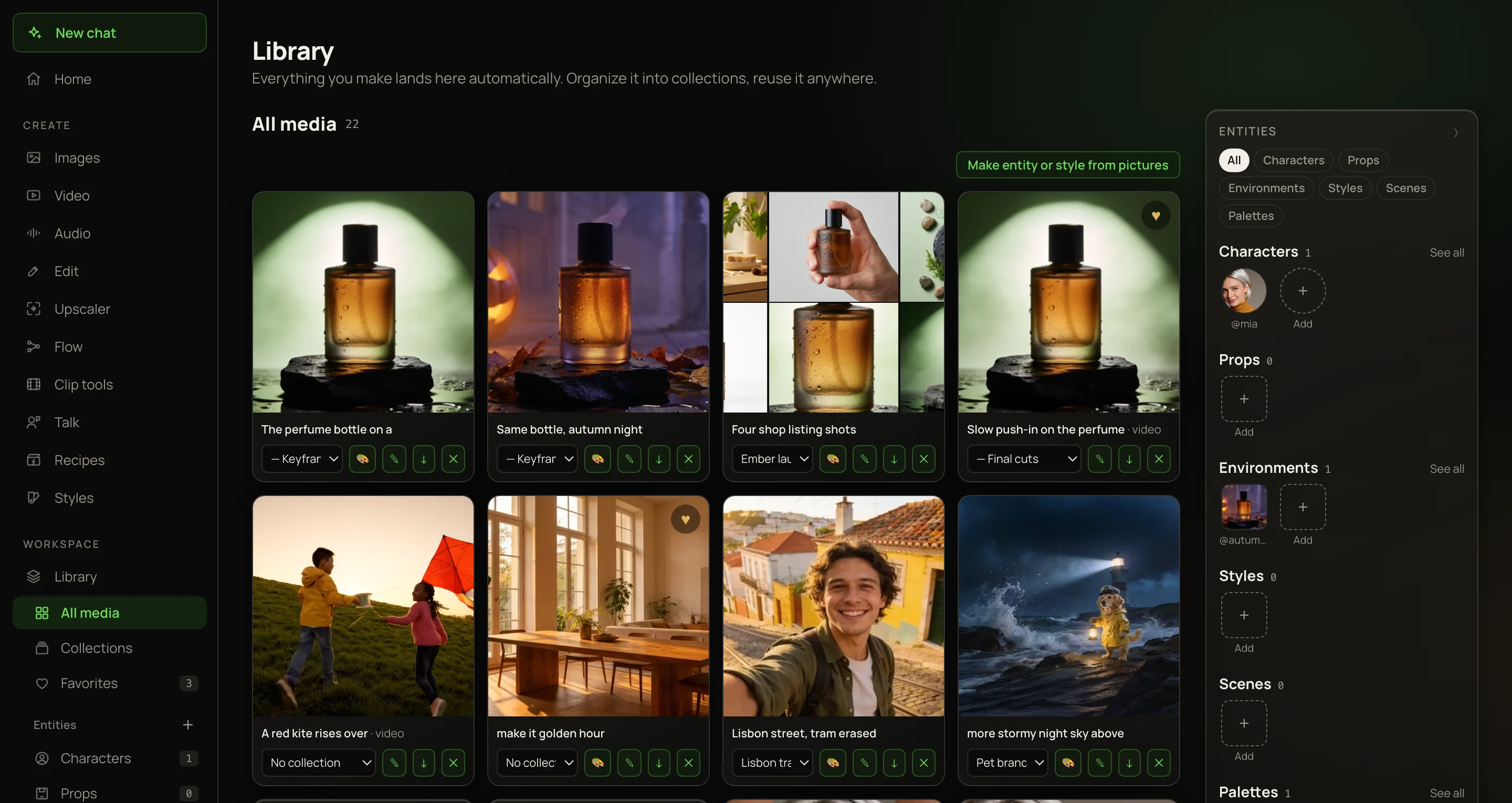
The Library: its menu on the left (All media, Collections, Favorites, Entities), a grid of saved pictures, clips and voiceovers, and the Entities panel on the right.

Find your way around

On the Library page, the left menu opens into the Library’s own sections:

▦All media
Everything you’ve made, newest first.
▤Collections
Your collections as cards, plus Not in a collection for work you haven’t filed. See Organizing with collections.
♥Favorites
Everything you’ve hearted, with a count beside it.
👤Entities
Your characters, props, environments, styles, scenes and colour palettes, each with a count. See Entities.

Your collections are listed below the entity types. On any other page, click the arrow beside Library to open the same menu. On a phone, the choices sit in a row at the top of the page.

The grid shows 24 creations at a time. Move through it with ← Prev, Next → or a page number at the bottom.

What’s on a card

Each card shows the picture, the clip or an audio player, and the creation’s name. The name is given when it’s saved: the first five words of your prompt. A voiceover is named after its first three spoken words. Tools with no prompt, like upscalers, use the tool’s name plus a short code.
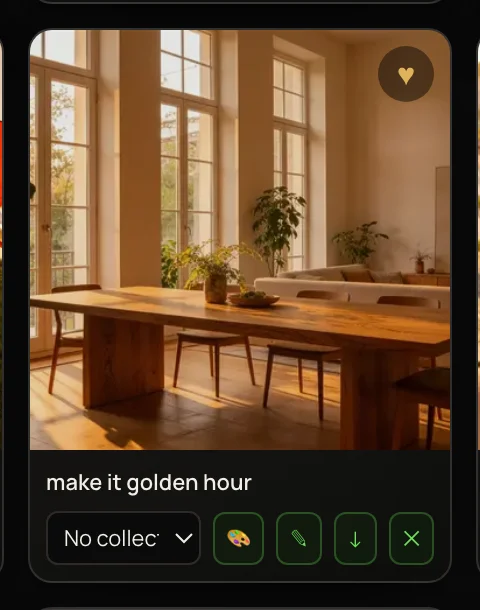
♡Favorite
Shows when you point at the card. Click it to add the creation to Favorites. It stays filled (♥) once added.
▤Collection menu
Files the creation into a collection or one of its folders. Choose No collection to take it out.
🎨Restyle
Pictures only. Pick a look from the style gallery and a new version of the picture is made in that look — same subject, layout and framing. It asks first and shows the price (one edit run); the new version is saved next to the original.
✎Save as
Renames the creation. The new name shows on the card and becomes the download’s file name.
↓Download
Saves the full-quality file to your device. See Saving and downloading your work.
✕Delete
Deletes the creation for good, after asking first.
One Library card on hover: the favourite heart, its name, the collection menu, and the Restyle, Save as, Download and Delete buttons.

Open and play

Click a picture or a video to open it full size in a new tab. That page has a ↓ Download button at the top. In the grid, a video plays while you point at it. Voiceovers and music play right in their card.

Delete a creation

Press ✕ on its card. The app asks “Delete forever? This can’t be undone.” — press OK and the creation is deleted.

Heads upThere’s no trash and no undo. The ✕ on a card deletes even while you’re looking at a collection. To take something out of a collection but keep it, set its collection menu to No collection.

Entities keep their own copy of every picture, so deleting a picture from the Library never breaks an entity made from it.

Restyle a picture

  1. 1
    Point at a picture card and press 🎨.
  2. 2
    Pick a look from the gallery. Search it by name, e.g. graphic_novel.
  3. 3
    Confirm the price. The restyled copy appears in your Library beside the original, which stays as it was.
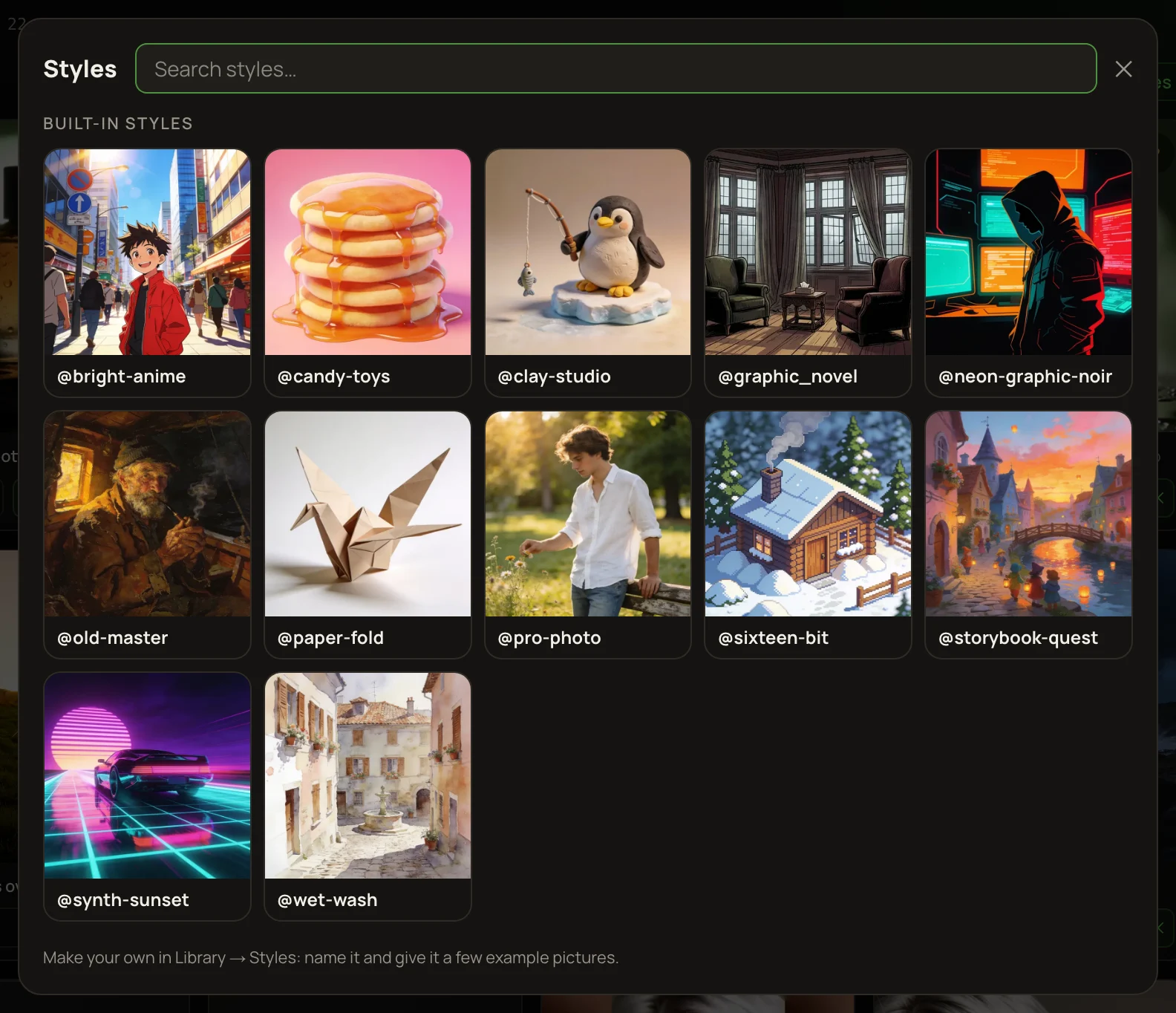
The style gallery that opens from a card's 🎨 button: built-in looks such as graphic_novel, clay-studio and wet-wash, each with an example picture.
Pick a look. solorender asks once more, with the price, before it makes the new version.

Turn pictures into an entity or a style

  1. 1
    Press Make entity or style from pictures above the grid.
  2. 2
    Tick up to 20 pictures that show one person, object, place, look or setup.
  3. 3
    Press Make entity for a character, prop, place or scene. Press Make style when the pictures share a look you want to reuse: the new-style window opens with the pictures in it and its description already written for you. Finish it as described in Entities.
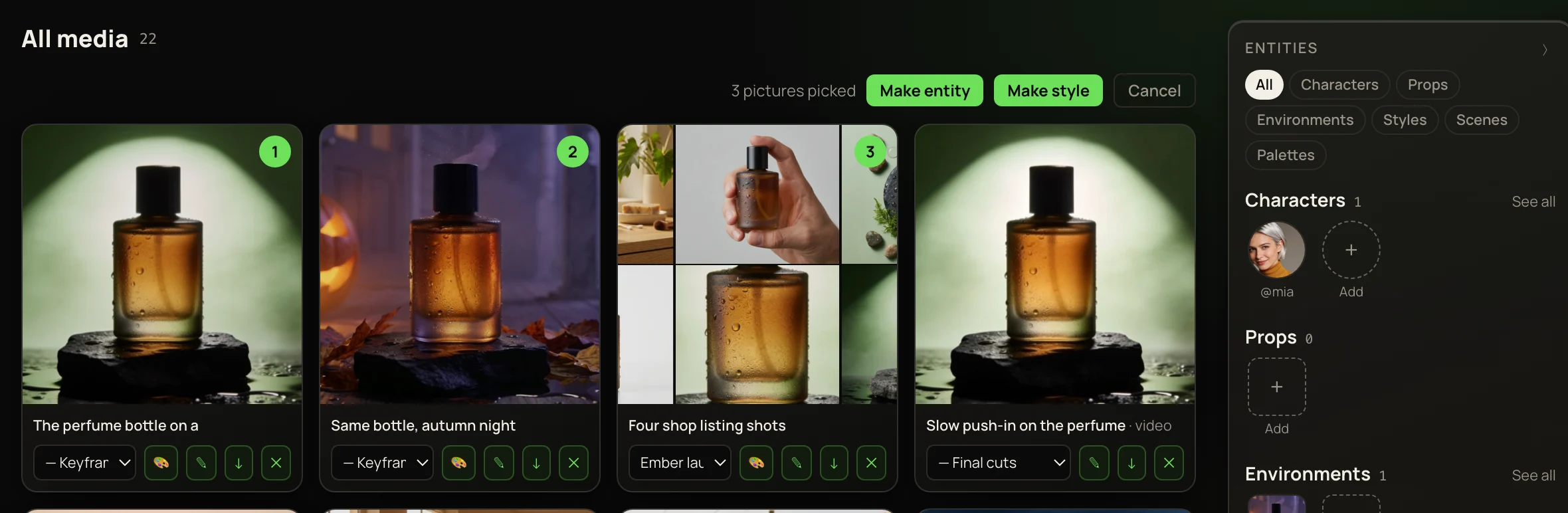
Picking mode in the Library: three pictures ticked 1, 2 and 3, with the Make entity, Make style and Cancel buttons.

What the Library doesn’t show

Files you upload as a starting point aren’t added — only what the models make. Finished films from Render film are saved here too, named after their flow or recipe.

More in Library & Collections

← Back to the Help Center