Editing photos with instructions
Change any picture by describing the change in plain words.
The Edit lane changes a picture you already have. Give it a photo, type the change — “make it golden hour” — and press Apply edit.
- Where
- Sidebar → Edit (opens Nano Banana 2 Edit)
- Cost
- From 2 credits a picture, shown on the button. Edit tools carry a standing discount — the % off tag in the model list.
- Saved to
- Your Library, automatically
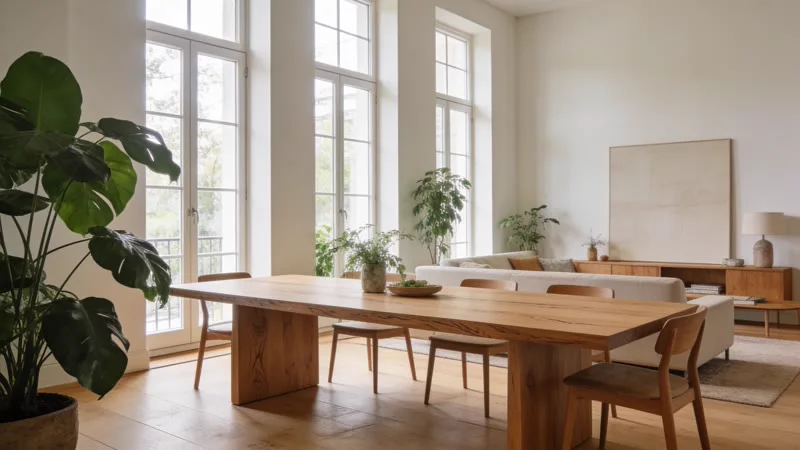
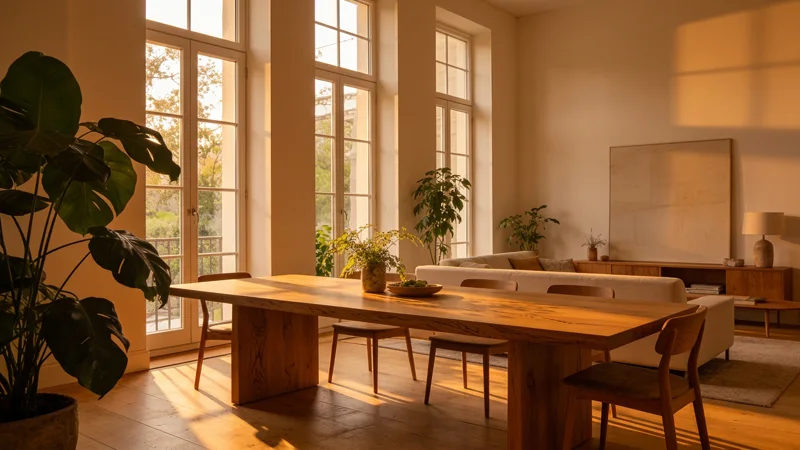
Edit a photo
- 1Open Edit in the sidebar, or pick the Edit lane in the Studio.
- 2Under Source image, press Upload a photo, or Library to pick one of yours — search it by name or prompt, or press Show more for older ones. It shows large on the right under Ready to edit.
- 3Type the change in Prompt: “remove the sign”, “give him a red jacket”.
- 4For several takes, set Images to 2–4. Each one is charged.
- 5Press Apply edit.
Which picture gets edited
The small preview under Source image always shows the picture that will be edited.
A photo you upload or pick from your Library always wins. If you haven’t set one, the last image you made on this visit is used, and the note reads “Using the last image you generated.”
So a new result doesn’t replace your uploaded photo. To edit a result again, press Library and pick it — your newest work comes first. While a result is on screen, the big panel shows the result, not the source.
Pick an editor
Every editor takes plain-language instructions. They differ in price, speed and how closely they follow you. Each row in the model list shows its price and usual time.
These editors have no orientation picker. Nano Banana 2 Edit and the Seedream editors keep your photo’s shape. Ideogram Character always makes a square picture here. To change the shape, use Expand.
GPT Image 2 Edit and Ideogram Character take a minute or more. They wait in line the way video does, and keep going if you close the page.
Add characters, places and styles
Every editor in the list above can take your saved entities as extra reference pictures. Type @ in the prompt and pick one: “put @mia in the driver’s seat”. The editor gets the entity’s pictures, cover first, along with your photo. 🎨 Style adds a look the same way.
The line under the prompt shows what each @name sends. Editors read up to 6 pictures, counting your photo. Grok Imagine Edit reads 3, and Ideogram Character just 1. When the limit runs out, an entity with a description goes in as words instead.
With no source picture set, these editors build a brand-new picture from entities alone: “@mia on @resort-lobby”.
One-job tools
The Edit lane also holds tools with one job: upscalers, the erase brush, and Expand.