Animating a picture
Turn any picture into a video clip by describing how it should move.
In the Video lane, a picture becomes a short clip. The picture is already the scene, so your prompt only says what moves and what the camera does.

Make a clip
- 1Click Video in the sidebar. The Studio opens on the Video lane, with Auto picked as the model.
- 2Under Source image, click Upload a photo or Library.
- 3Pick a Length. The price on the button changes with it.
- 4In Prompt, describe the motion and the camera: “slow push-in, hair moving in the wind”. Leave it empty and you get subtle, natural motion.
- 5Click Generate video. A card follows the run, and the clip lands in the result panel and your Library.
Auto or a model you pick
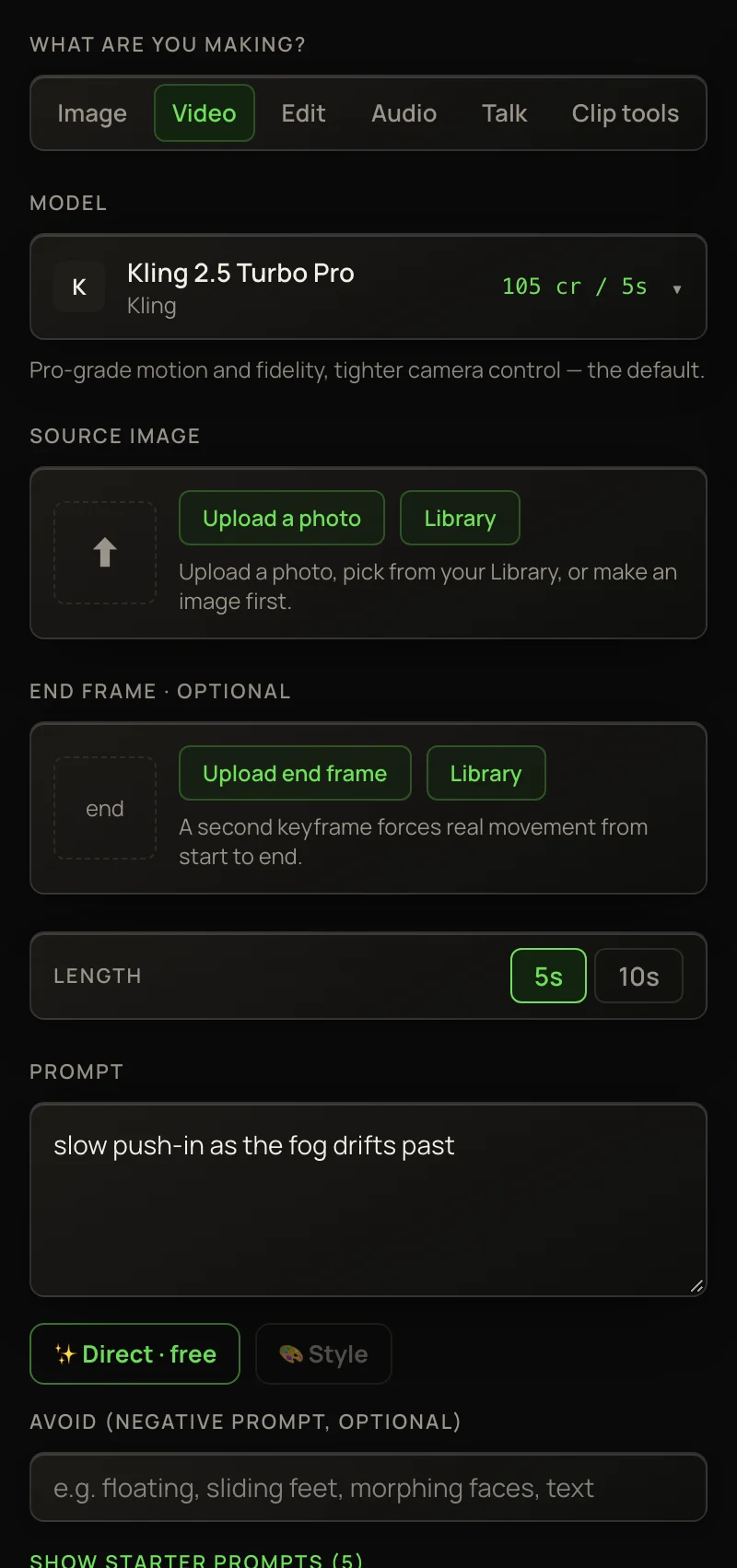
Auto always runs Kling 2.5 Turbo Pro and charges its price. Its button reads cost varies instead of a number. Auto also hides the end frame, ✨ Direct and the Avoid box. Pick Kling 2.5 Turbo Pro yourself to get them — same model, same price, and the exact number on the button.
Every other model is in the Model list. The Best for filter and the Cheapest sort help you choose. Good places to start:
Length, resolution and shape
Each model offers its own lengths under Length. Some also offer a Resolution choice. Longer and sharper clips cost more, and the button always shows the exact price for your choices — see How video pricing works.
The clip takes its shape from your picture. For a vertical clip, start from a 9:16 picture.
Let ✨ Direct write the prompt
Every picture-to-video model except Auto has ✨ Direct · free under the prompt. Type a few rough words (“slow push-in, fog”), or none, and press it. An AI film director looks at your picture — and your end frame, if you set one — and writes a full motion prompt into the box.
It also fills in Avoid. On a model without an Avoid box, those words go at the end of the prompt instead.
Pressing is free. 9 credits are added once, when you generate, and the button shows + 9 ✨. You get 25 free presses a day once you’ve bought credits, or 3 on sign-up credits alone.
More controls
While it renders
A video takes from under a minute to several minutes. The picker shows each model’s usual time. The run’s card shows your place in line, then the time left.
You don’t have to wait. Start another run, or leave the page — videos keep rendering and land in your Library. Come back to the Studio and their cards return.
When the clip is done, ✂️ Send this clip to Clip tools under it lets you upscale, extend or edit it. See Clip tools.