Making characters talk
Make a photo speak from a typed script, or give a finished clip a new voice.
The Talk lane does two jobs. A talking photo turns a still face and a voice into a speaking clip. Lip sync takes a finished clip and re-times the mouth to a new voice. The model you pick decides which.

Make a photo talk
- 1Click Talk in the sidebar. It opens on VEED Fabric, a talking-photo model.
- 2Under Face, click Upload a photo or Library. A clear, front-facing portrait works best.
- 3If the model offers sizes, pick one under Output.
- 4Give it a voice. Under Voice, click Pick from Library to use a voiceover you’ve made. Or skip that: choose the voice model and voice in Read by, and type the words in Script — up to 450 characters, about 30 seconds of speech.
- 5Click Make it talk.
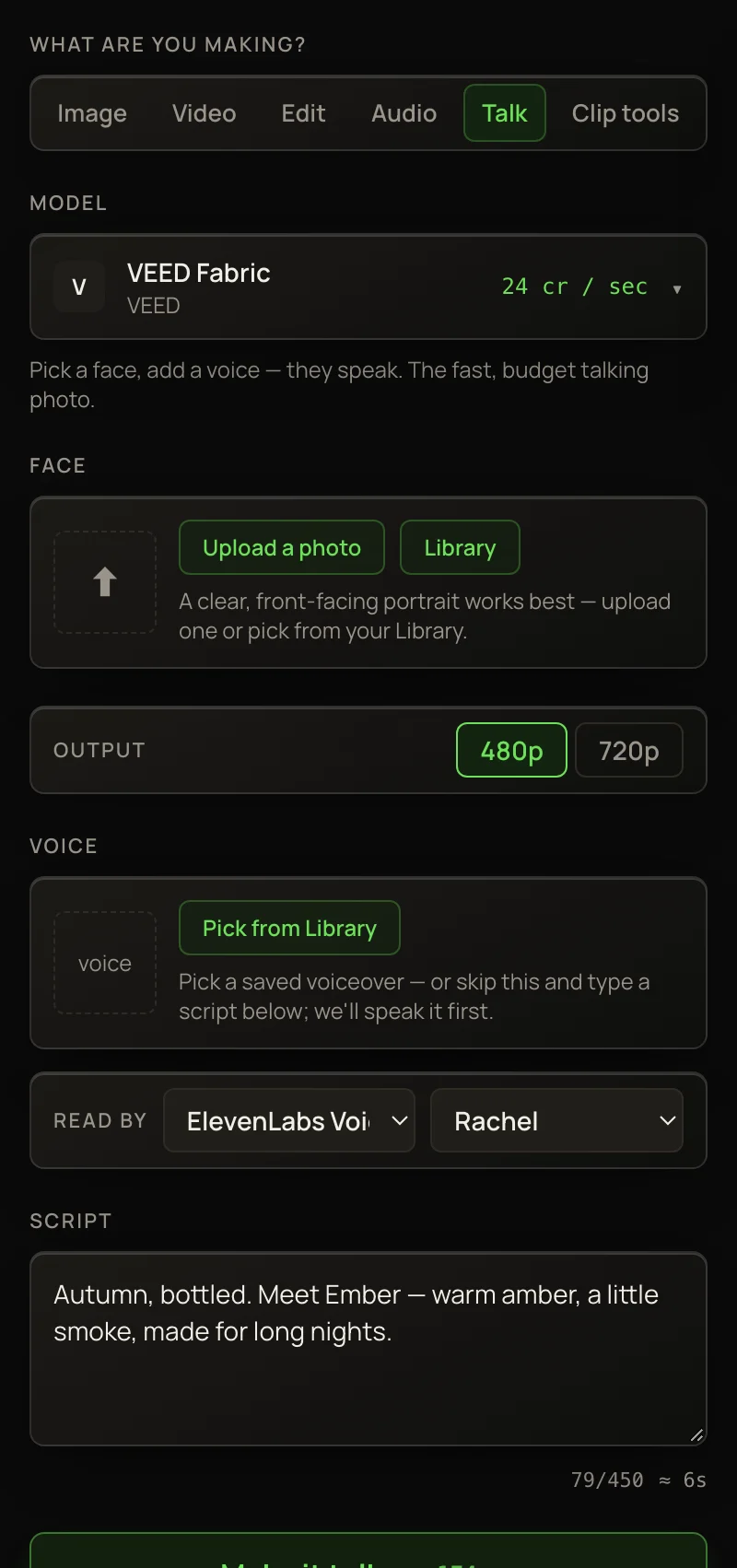
With a typed script, solorender makes the voiceover first — a normal Audio run, charged and saved to your Library — then the talking clip.
Talking-photo models
What a talking photo costs
You pay per second of the voice, measured from the file itself, with a 2-second minimum. A voice can be up to 30 seconds. A longer track from your Library is turned away before anything is charged.
With a typed script, the button shows an estimate, marked ≈, that includes the voiceover. The talking clip is then charged on the voice’s real length.
Lip sync: give a clip a new voice
- 1In the Talk lane, open Model and pick VEED Lip Sync or Kling Lip Sync.
- 2Under Clip, click Upload a clip — MP4 or MOV, up to 60 seconds and 90 MB — or Library to pick a video you’ve made.
- 3Under Voice, click Pick from Library and choose a voiceover. Make one in the Audio lane first if you need to.
- 4Click Sync lips.
Lip sync is billed per second of the clip, measured from the file, with a 2-second minimum. The total is on the button before you run.