Generating images
Make one to four pictures from a prompt, in the shape you need.
The Image lane makes new pictures from words. Pick a model, describe the picture, choose its shape, and press Generate image. Every result is saved for you.
- Where
- Sidebar → Images (the Studio’s Image lane)
- Cost
- From 1 credits a picture, shown on the button before you run
- Saved to
- Your Library, automatically
Make an image
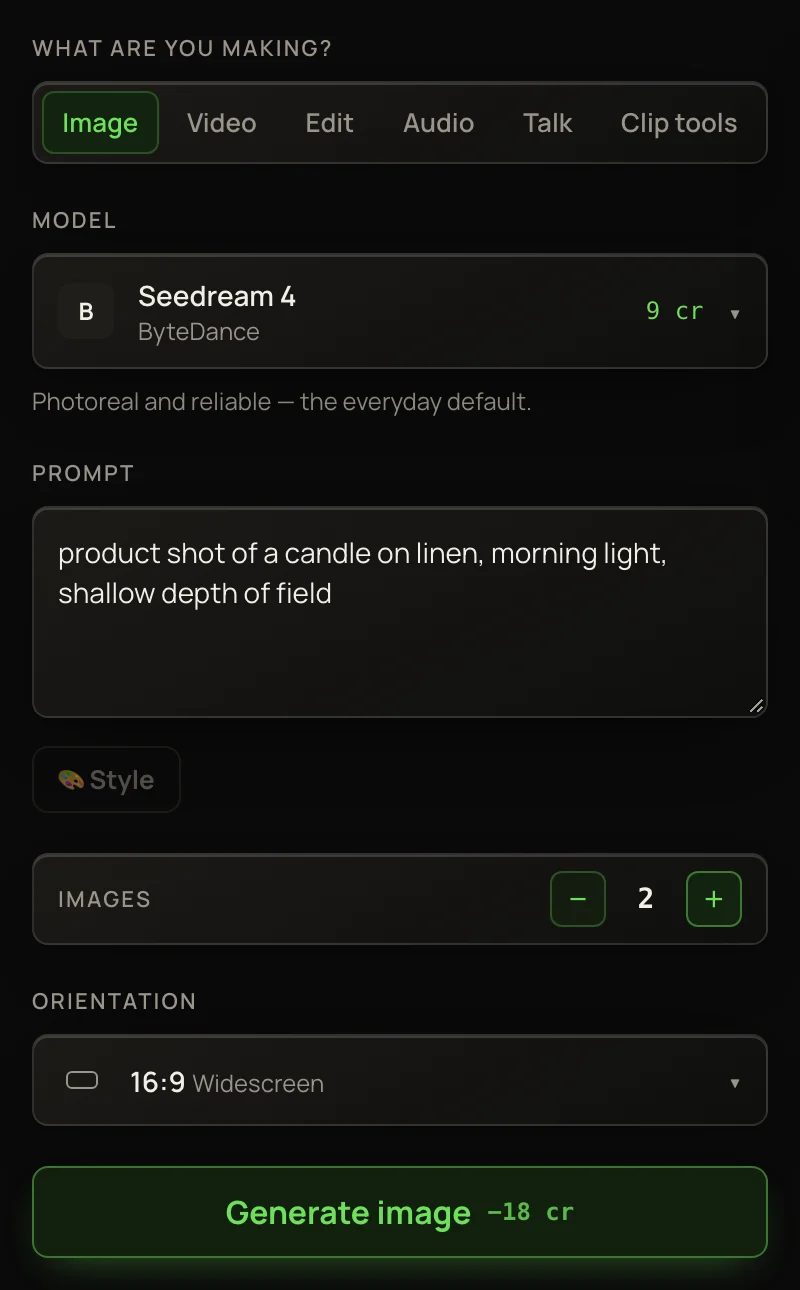
- 1Open Images in the sidebar. The Studio opens on the Image lane with Auto picked.
- 2Keep Auto, or open the Model list and pick one. See Choosing a model.
- 3Describe the picture in Prompt: subject, setting, style and light.
- 4Set Images to 1–4 with − and +.
- 5Pick an Orientation. 16:9 Widescreen is picked at first.
- 6Press Generate image. The price is on the button.
Batches
Each run makes 1 to 4 pictures, and each picture costs the model’s price. Four takes on one prompt is the cheapest way to find a keeper.
Recraft V3, Recraft V4.1 and FLUX 2 Pro make one picture per run. Ask them for more and the extra credits come straight back.
Orientation
There are ten shapes: Square (1:1), Widescreen (16:9), Story (9:16), Social post (4:5), Portrait (3:4), Portrait tall (2:3), Classic (4:3), Standard (3:2), and the Horizontal (2:1) and Vertical (1:2) banners. Pick the shape before you run — it’s part of the request, not a crop.
Some models only make certain shapes. They round your pick to the nearest shape they support, so a 2:1 banner may come back 16:9.
Steer the result
These sit with the prompt box, on the models that support them.
Results
Results appear in the panel on the right. One picture fills the panel; a batch sits side by side. Click any picture to open it full size in a new tab.
Under the result, a row shows the model, how long it took and what it cost. ✓ Saved to your Library · Open full size ↗ confirms the save. A Recent work strip under the Studio shows your latest creations on this device.
Animate a result
Under a picture, 🎬 Animate this with Kling 2.5 Turbo Pro · −88 cr turns it into a 5-second video. Under a batch it reads 🎬 Animate the first with … and uses the first picture.
Several runs at once
You don’t have to wait. Press the button again and the next run starts while the first one works. Each run gets a card with a timer, and the newest finished result shows in the panel.
Four slower models — Seedream 4.5, GPT Image 2, Wan 2.7 and Grok Imagine 2 — wait in line the way video does. They keep going if you close the page and land in your Library. If one is still running when you come back, its card returns. While one is waiting in line, its card shows Cancel · refund.
While runs are going, two buttons sit under the cards. 🔔 Tell me when it's ready plays a chime and shows a desktop notice when a run finishes while you’re on another tab. 📧 Email me when it's ready emails you if you’ve left the page when one of the slower runs finishes. Both stay on until you switch them off.