🏷 Crisp Upscale is 20% off — 2 credits instead of 2.5Try it•🏷 Creative Upscale is 20% off — 50 credits instead of 62.5Try it•🏷 Clarity Upscaler is 20% off — 6 credits a megapixel instead of 7.5Try it•🏷 Qwen Edit 2511 is 20% off — 6 credits instead of 7.5Try it•🏷 FLUX Erase is 20% off — 10 credits instead of 12.5Try it•🏷 Seedream 4.5 Edit is 20% off — 8 credits instead of 10Try it•🏷 Seedream 5 Flash Edit is 20% off — 6 credits instead of 7.5Try it•🏷 Nano Banana 2 Edit is 20% off — 16 credits instead of 20Try it•🏷 Nano Banana 2.1 Edit is 20% off — 10 credits instead of 12.5Try it•🏷 FLUX.2 Klein 9B Edit is 21% off — 5 credits instead of 6.3Try it•🏷 Ideogram Character is 20% off — 30 credits instead of 37.5Try it•🏷 GPT Image 2 Edit is 20% off — 43 credits instead of 53.8Try it•🏷 GPT Image 2.5 Flare Edit is 20% off — 11 credits instead of 13.8Try it•🏷 GPT Image 2.5 Sunburst Edit is 20% off — 11 credits instead of 13.8Try it•🏷 Meta Muse Edit is 20% off — 2 credits instead of 2.5Try it•🏷 Grok Imagine Edit is 21% off — 5 credits instead of 6.3Try it•🏷 Bria Expand is 20% off — 8 credits instead of 10Try it•🏷 Ideogram Reframe is 20% off — 12 credits instead of 15Try it•🏷 Topaz Video Upscale is 20% off — 4 credits a second instead of 5Try it•🏷 FLUX Video Upscale is 20% off — 28 credits a second instead of 35Try it•🏷 Grok Imagine Extend is 20% off — 20 credits a second instead of 25Try it•🏷 Lucy Edit Pro is 20% off — 30 credits a second instead of 37.5Try it•🏷 Kling O3 4K Edit is 20% off — 84 credits a second instead of 105Try it•🏷 Luma Modify is 20% off — 70 credits a second instead of 87.5Try it•✨ New: Nano Banana 2.1Try it•✨ New: Grok Video 1.5 LiteTry it•Credits never expire — whatever you buy rolls over foreverSee pricing•

What Flow is

A canvas where each box makes one thing and passes it on. Build the chain once, then re-run any part of it.

Flow is a canvas for work that takes more than one step. Each box does one job — hold a photo, make a picture, change it, animate it, or speak a line. Cables carry each result on to the next box. Build the chain once, then re-run any box on its own.
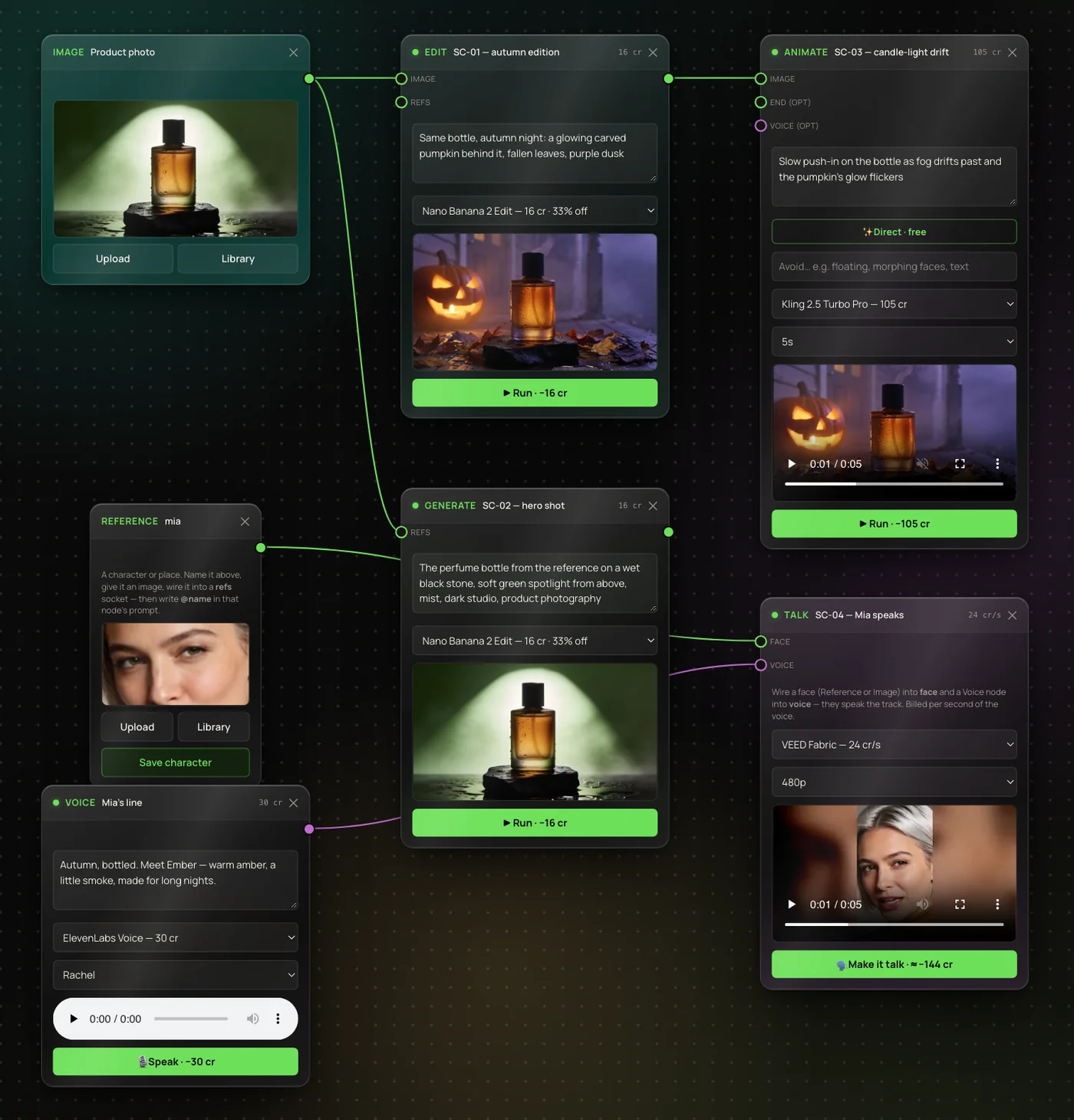
A finished flow: a product photo feeds an autumn edit, which feeds an animated clip; a reference face and a voice line feed a talking clip.
One flow, seven boxes: the product photo becomes an autumn clip, and Mia speaks a line about it. Click to open it full size.

When to use Flow

There are three ways to make things. Pick by how many steps the job takes.

The Studio
One thing at a time — a picture, a clip, a voice. Open Images, Video, Audio or Edit in the sidebar.
Recipes
A finished job in one press: an ad, a creator video, a set of pictures. You add your photo; the recipe picks the models. See Make something with the Recipes page.
Flow
Your own chain of steps, kept on a canvas. Change one prompt and re-run just that box. Join the clips into one film at the end.

Start a flow

  1. 1
    Click Flow in the sidebar. The page opens on your list of flows.
  2. 2
    Click + New flow and type a name.
  3. 3
    Under Collection, pick one of your collections, choose + New collection… to make one, or leave No collection (file later).
  4. 4
    Click Create flow. The empty canvas opens.
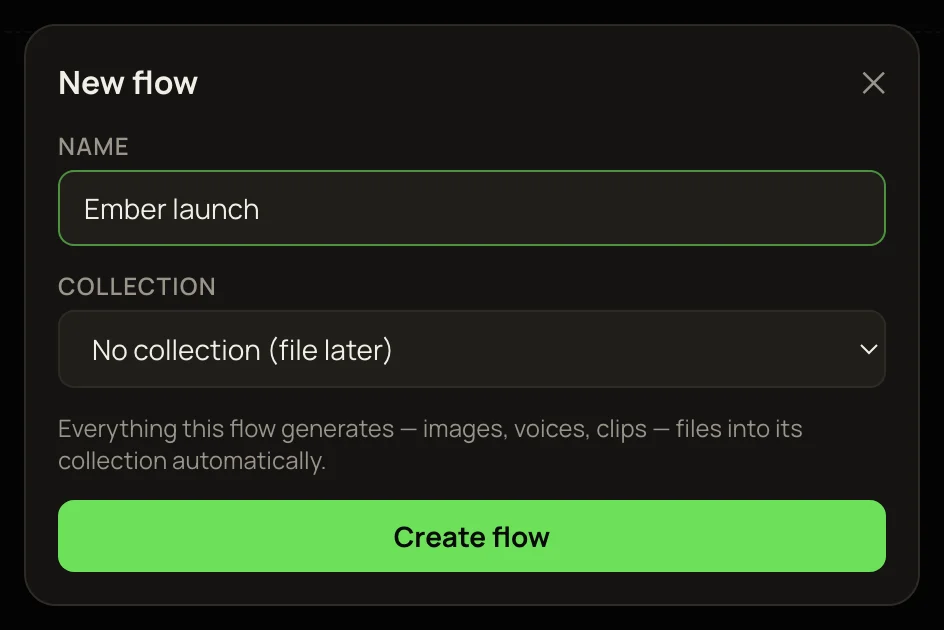
The New flow window: the Name box reading Ember launch, the Collection menu set to No collection (file later), and the Create flow button.
Pick a collection and everything the flow makes files into it.

Fill the canvas

There are three ways to begin:

Add boxes yourself
Click a box in the Add node bar, type a prompt on it and press ▶ Run. Flow nodes explained covers all seven boxes.
Load a recipe
Click Recipes ▾ in the toolbar and pick one. A whole pre-wired flow appears; add your photo and run it. See Recipes: ready-made flows.
Load the simple example
The last item in Recipes ▾. It adds a Generate box wired to an Animate box, with a picture prompt and rough motion notes already typed.
TipRecipes and the example replace everything on the open canvas (the page asks first). To keep the flow you have, start a + New flow before you load one.

Where your work goes

The flow itself
Saves as you work — the header says autosaves. Reopen it from the Flow page, or from its collection in the Library.
What it makes
Every picture, voice and clip lands in your Library. With a collection, results file into it. Without one, they go under Not in a collection.

Each card on the Flow page shows the flow’s collection (or No collection), how many boxes it has, and the date. Click a card to open the flow. To delete one, hover its card and click ✕ — its images and clips stay in your Library.

What it costs

Building is free — adding, naming and wiring boxes costs nothing. A box charges only when you run it, and its price is on its ▶ Run button. Re-run one box and you pay for that box only. ▶ Run all shows the total for every box that hasn’t run yet. Joining clips with 🎞 Render film costs 5 credits plus 1 per clip. If a run fails, its credits come back — see Refunds for failed or cancelled runs.

New to Flow? The step-by-step tutorial builds the flow in the picture above, one box at a time.

More in Flows

← Back to the Help Center