Make your first image
From an idea to a finished picture in about a minute.
Type an idea, press one button, and the picture lands in your Library. You don’t have to choose a model: Auto picks one for you.
- Where
- The Studio — New chat or Create → Images in the sidebar
- Cost
- Pictures start at 1 credits each. On Auto you pay the price of the model it picks.
- Time
- About 5–15 seconds on Auto
Make it
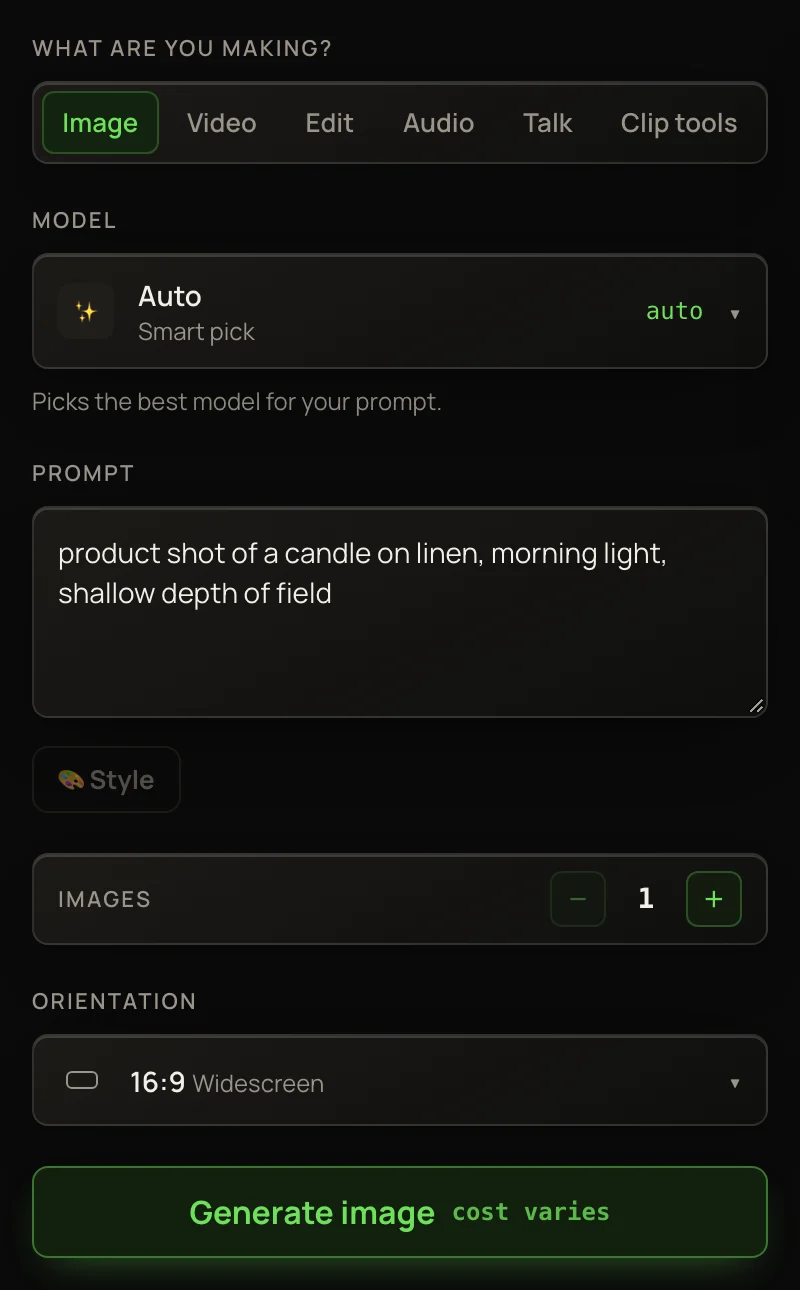
- 1Click New chat at the top of the sidebar (on a phone, tap ☰ then Studio). The Studio opens on Image, with the model set to Auto.
- 2In Prompt, describe the picture: “product shot of a candle on linen, morning light”.
- 3Set how many Images to make, from 1 to 4. Then pick an Orientation — it starts on 16:9 Widescreen.
- 4Press Generate image. On Auto the button says cost varies: Auto picks the model when you press it, and you pay that model’s price for each picture you get.
Already on Home? Type your idea in the big box and press Create →. The Studio opens with your words already in the prompt.
When it lands
The picture appears in the panel on the right. Click it to open it full size in a new tab. Three labels under it tell you what happened:
The picture also joins the Recent work row under the Studio, and your Library.
Make it move
Under a picture sits 🎬 Animate this →. It doesn’t charge anything: it opens the Video lane with your picture set as the source and Kling 2.5 Turbo Pro picked. Check the price, write or ✨ Direct the motion, then press Generate.
For more control, switch to the Video lane instead. Your new picture is already set as the Source image. Pick a model and a length, then write a motion prompt — or let ✨ Direct · free write it. See Animating an image.
Next steps
Better words make better pictures: read Writing better prompts. To choose the model yourself, see Choosing a model.