✨ Direct: Turn a rough idea into a full prompt
Type a few rough words, press one button, and get a full, detailed prompt for a picture, an edit or a video. Free.
Open the Studio- Pick a lane and a model. For an edit or a video from a picture, add your picture.
- Type a few rough words in the prompt box, then press ✨ Direct · free.
- Read the new prompt and change anything you like. Press Generate: only now are credits used.
The full guide is below.
✨ Direct · free is a button that sits under the box where you describe what you want. You type a few rough words, press it, and a few seconds later those words are replaced by a full, carefully written description that AI models understand well. We call the helper behind the button the Director.
This page explains it from the very beginning. You don’t need to know anything about AI, video or prompts to follow it.
- What it does
- Turns your rough idea into a full, detailed prompt, written into the box for you
- Where
- Under the prompt box in the Studio (Image, Edit and Video) and on Flow boxes
- Cost
- Free — pressing it, and what you make from it, add nothing extra
- Daily limit
- 50 presses a day once you’ve bought credits (3 before)
- What you need
- A few words, a picture, or both
First: what is a prompt?
A prompt is the text you write to tell an AI model what to make. A model is the AI that actually makes the picture or video — solorender has many, and you pick one from a list before you make anything.
Models do exactly what the words say, and they fill every gap with their own guess. “A dog in a park” gets you a dog in a park — any dog, any park, any light. A good prompt closes those gaps: who or what, what is happening, where, what the light is like, how the camera sees it. For a video it also says how everything moves, second by second.
Writing all of that well takes practice. ✨ Direct does it for you.
What ✨ Direct does
- 1It reads what you typed in the prompt box (your “notes”). Where it helps, it also looks at your picture: the picture you’re editing, or the picture your video starts from.
- 2It writes one complete prompt for the model you have picked, and puts it in the prompt box in place of your notes.
- 3For videos, it also fills the Avoid box with a short list of common video mistakes to steer away from (more on that below).
- 4Nothing is made yet. You read the prompt, change anything you like, and press the usual Generate or Run button when you’re happy.
Pick your job
The Director writes differently for each kind of job. Each one has its own short page with a real example: the words that were typed, and the full prompt that came back.
Where you’ll find it
The button only appears where it can help. If you don’t see it, the model you’ve picked doesn’t take a written prompt, or it’s one of the exceptions listed at the end of this section.
Where it doesn’t appear
- Auto for video. Pick a named video model to get the button.
- Entities video models (Kling O3 · Entities and Veo 3.1 Fast · Entities). They build the shot from your saved @characters and pictures, which the Director doesn’t read.
- Upscaler, Erase and Expand, which take no written prompt.
- Audio, Talk, lip sync and Clip tools (voiceovers, music, sound effects, talking photos, clip edits and extends).
- Recipes and the Video editor.
How to use it, step by step
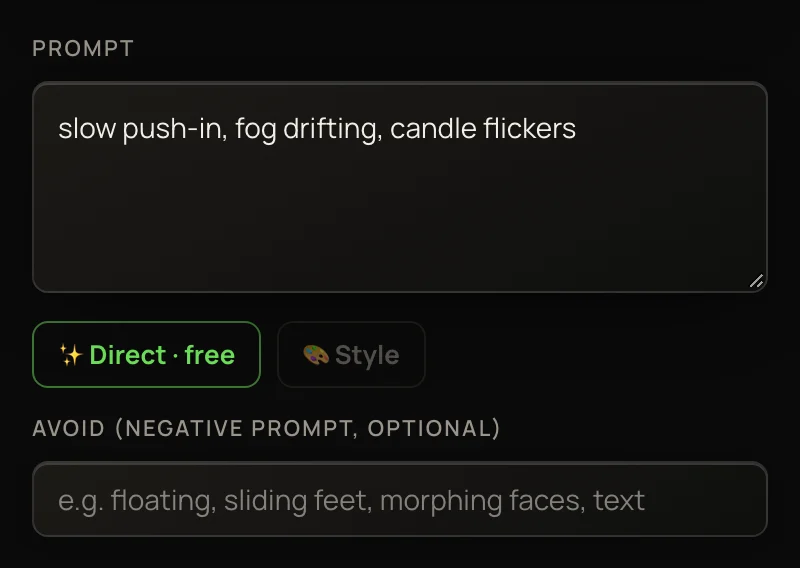
- 1Open the Studio and pick a lane: Images, Edit or Video. Pick a model from the list.
- 2For an edit or a video from a picture, add your picture. For a new picture or a Text→video clip, skip this.
- 3Type a few rough words in the prompt box. Plain language is fine: “grandma wins an arm-wrestle”, “he pushes the photo across the desk”. With a picture, you can even leave the box empty.
- 4Press ✨ Direct · free. The button reads Directing… while it writes. Wait for the new prompt to appear in the box.
- 5Read the new prompt. Change any word you like — it’s your box.
- 6Press Generate (or Run on a Flow box). Only now are credits used, at the price on the button.
What to type
A sentence or two is plenty. The Director keeps everything you say and makes its own choices only where you leave a gap. These help most:
In every video: the acting
Whenever a person or animal with a face is in the shot, the Director also directs the performance. Instead of writing a feeling (“he is nervous”), it writes what a camera could actually see: where the eyes look in each beat, a hand pausing, a slow breath, a natural blink. This makes characters look alive and thinking — without adding any extra action you didn’t ask for.
The Avoid box
Some models have a second box called Avoid (also known as a “negative prompt”). It lists things you don’t want, separated by commas.
For videos, ✨ Direct adds a short list of the most common video mistakes:
floating, hovering, gliding, sliding feet, face morphing, warping, extra limbs, jitter, talking
- Anything you had already typed in Avoid is kept; the list is added on, without repeats.
- On Text→video it also adds “walking backwards”. If your clip has spoken words, “talking” is left out so the person can speak.
- On a model with no Avoid box, the list goes at the end of the prompt instead, as a last sentence starting “Avoid:”.
- For pictures and edits, the Avoid box is left as it is.
That’s also why the prompt itself never says “no …” or “without …”: models often draw the very thing a “no” names, so those words live in the Avoid list instead.
What the Director will and won’t do
- Keep everything your notes say, and choose boldly only where you left a gap.
- Write out every step of a video’s movement, in order, instead of leaving the model to guess.
- Write exactly the camera move you ask for.
- Keep faces, clothes, colours and props the same from start to finish.
- Keep spoken words and words in a picture exactly as you typed them.
- Keep any @name exactly as you typed it.
- Fit the prompt to the model’s length limit (see below).
- Make the picture or video. Only Generate or Run does that.
- Add a second action to a video, or extra gestures beyond the action you chose.
- Make anyone speak in a video from a picture. Mouths stay as they are in the picture. To make someone talk, use a Text→video model with the words in quotes, or see Making characters talk.
- Invent text, brand names, prices or slogans for a picture.
- Use empty “quality” words like 8K, masterpiece or ultra sharp — they don’t help.
- Ask you questions. It always writes a prompt straight away.
- Remember earlier presses. Each press starts fresh from what’s in the box.
Cost and daily limits
- Pressing ✨ Direct
- Free
- What you make from it
- Free all the way: the video you make from the prompt adds nothing.
- Daily limit
- 50 presses a day, or 3 before you’ve bought credits. Each press comes back 24 hours after you used it.
- “Bought credits” means any purchase: a plan, a credit pack or an offer. Before that, you get 3 presses a day to try it.
- The day is a rolling 24 hours, not midnight: each press comes back 24 hours after you used it.
- One press at a time. Wait for one to finish before pressing again, even in another box or tab.
- A press that fails, or comes back cut short, doesn’t count.
- The picture or video you make costs exactly its usual price, shown on the Generate or Run button.
Troubleshooting
Every model maker runs its own safety check on what goes in and what comes out, and some are stricter than others. A block can be set off by your picture, your words, or both — for example, some models turn down realistic photos of real-looking people more often than others. Your credits come back automatically.
What to try: pick a different model (the same picture often runs fine elsewhere), reword the prompt, or start from a different picture. The ✨ Direct press itself is never charged either way.