🏷 Crisp Upscale is 20% off — 2 credits instead of 2.5Try it•🏷 Creative Upscale is 20% off — 50 credits instead of 62.5Try it•🏷 Clarity Upscaler is 20% off — 6 credits a megapixel instead of 7.5Try it•🏷 Qwen Edit 2511 is 20% off — 6 credits instead of 7.5Try it•🏷 FLUX Erase is 20% off — 10 credits instead of 12.5Try it•🏷 Seedream 4.5 Edit is 20% off — 8 credits instead of 10Try it•🏷 Seedream 5 Flash Edit is 20% off — 6 credits instead of 7.5Try it•🏷 Nano Banana 2 Edit is 20% off — 16 credits instead of 20Try it•🏷 Nano Banana 2.1 Edit is 20% off — 10 credits instead of 12.5Try it•🏷 FLUX.2 Klein 9B Edit is 21% off — 5 credits instead of 6.3Try it•🏷 Ideogram Character is 20% off — 30 credits instead of 37.5Try it•🏷 GPT Image 2 Edit is 20% off — 43 credits instead of 53.8Try it•🏷 GPT Image 2.5 Flare Edit is 20% off — 11 credits instead of 13.8Try it•🏷 GPT Image 2.5 Sunburst Edit is 20% off — 11 credits instead of 13.8Try it•🏷 Meta Muse Edit is 20% off — 2 credits instead of 2.5Try it•🏷 Grok Imagine Edit is 21% off — 5 credits instead of 6.3Try it•🏷 Bria Expand is 20% off — 8 credits instead of 10Try it•🏷 Ideogram Reframe is 20% off — 12 credits instead of 15Try it•🏷 Topaz Video Upscale is 20% off — 4 credits a second instead of 5Try it•🏷 FLUX Video Upscale is 20% off — 28 credits a second instead of 35Try it•🏷 Grok Imagine Extend is 20% off — 20 credits a second instead of 25Try it•🏷 Lucy Edit Pro is 20% off — 30 credits a second instead of 37.5Try it•🏷 Kling O3 4K Edit is 20% off — 84 credits a second instead of 105Try it•🏷 Luma Modify is 20% off — 70 credits a second instead of 87.5Try it•✨ New: Nano Banana 2.1Try it•✨ New: Grok Video 1.5 LiteTry it•Credits never expire — whatever you buy rolls over foreverSee pricing•

Flow nodes explained

The seven box types, how to wire them together, and Run all.

A flow is built from boxes. Each box does one job — hold a picture, make one, change one, animate it, or speak a line — and cables carry each result on to the next box.
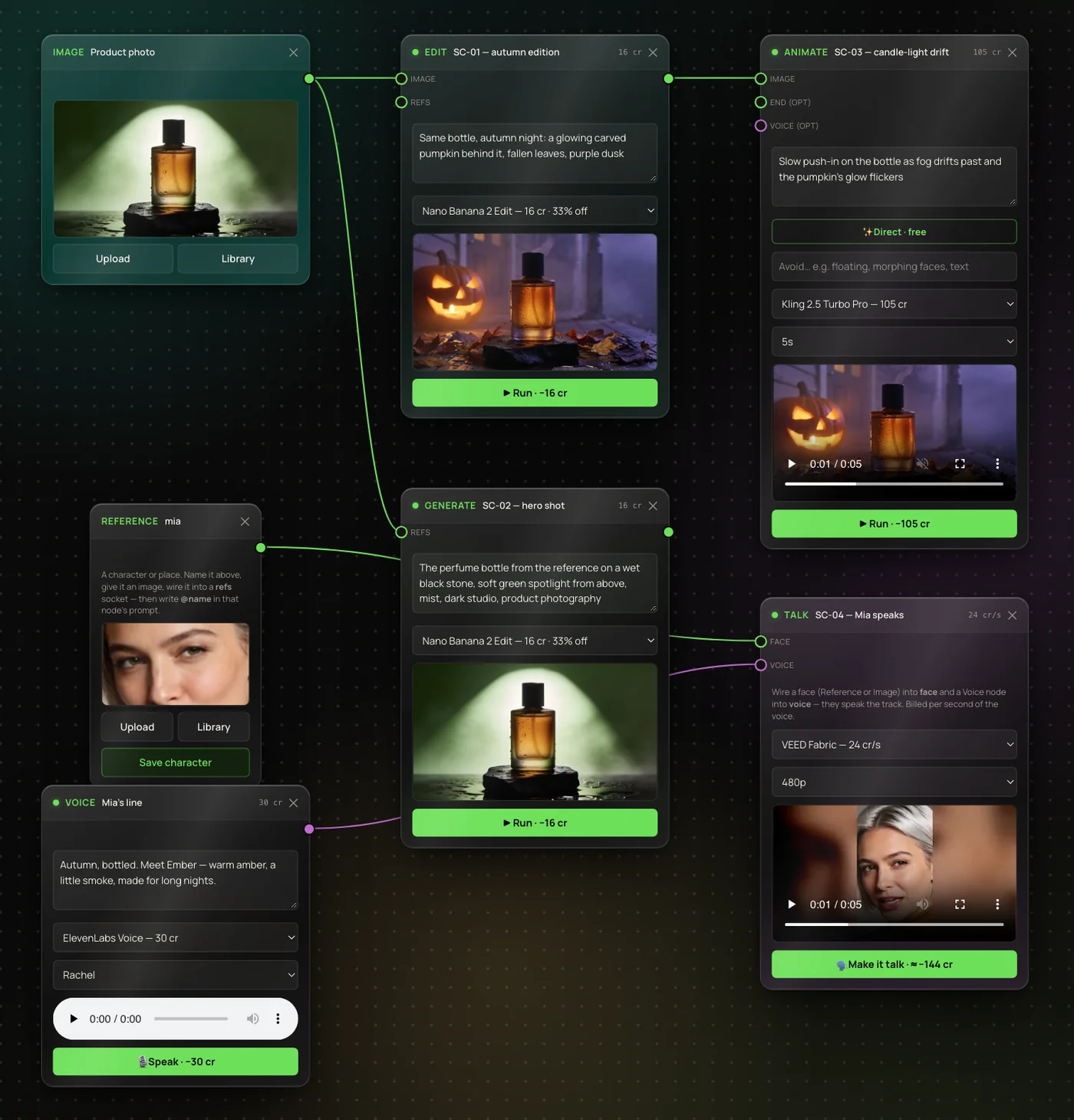
A finished flow: a product photo feeds an autumn edit, which feeds an animated clip; a reference face and a voice line feed a talking clip.
A finished flow: the product photo becomes an autumn ad clip, and Mia reads the voiceover. Click to open it full size.

Add a box

  1. 1
    Open a flow from Flow in the sidebar, or start one with + New flow.
  2. 2
    In the Add node bar above the canvas, click the box you want. It appears on the canvas.
  3. 3
    Drag it by its header, and type a name there — name shots like a storyboard (“SC-01 — cold open”). Names save with the flow.

The Add node bar with seven buttons: Image, Reference, Generate, Edit, Animate, Voice and Talk.

The eight boxes

Every box that makes something has its own prompt, model picker and price — the price is on its ▶ Run button, the same as in the Studio.

Image
Holds a picture you upload or pick from your Library — the starting point for edits, animation or a talking face.
Gives
picture
Reference
A named character, product or place. Name it in the header (“mia”), add a picture, wire it into a refs socket and write @mia in that box’s prompt. Save character keeps it for every flow.
Gives
named picture
Style
One look for many boxes. Press 🎨 Style on the box, pick any style, then wire it into the style socket of as many Generate, Edit and Animate boxes as you like. Change the style once and every box it feeds uses the new one on its next run. For video, wire it into the picture box that feeds Animate too — most video models take the look from the starting picture.
Gives
style
Generate
Makes a new picture from the prompt typed on the box. Wire pictures into refs to keep a product or face the same from shot to shot.
Takes
refs (optional)style (optional)
Gives
picture
Edit
Changes a picture with words. Wire a picture into image, type what to change (“make it an autumn night”), and run.
Takes
imagerefs (optional)style (optional)
Gives
picture
Animate
Turns a picture into a video clip. Pick the model and length on the box. Models marked “(from text)” need no picture at all.
Takes
imagestyle (optional)end (optional)voice (optional)
Gives
video clip
Voice
Reads a script aloud. Type the words on the box, pick a voice, and press 🎙 Speak.
Gives
voice track
Talk
Makes a face speak. Wire a Reference or Image into face and a Voice box into voice. Billed per second of the voice.
Takes
facevoice
Gives
talking clip
TipSaved characters and styles don’t need a Reference box: type @ in any prompt and pick one from the list.

Connect boxes

Drag from the dot on a box’s right edge to a socket on another box’s left edge, and let go. To remove a cable, click it.

Wiring a product photo into an Edit box.

Cables come in two colors: green carries pictures and violet carries sound. Only matching colors connect. Words never travel on a cable — each box has its own prompt. Video clips from Animate and Talk end the chain; Render film joins them into one video.

Animate’s extra sockets and ✨ Direct
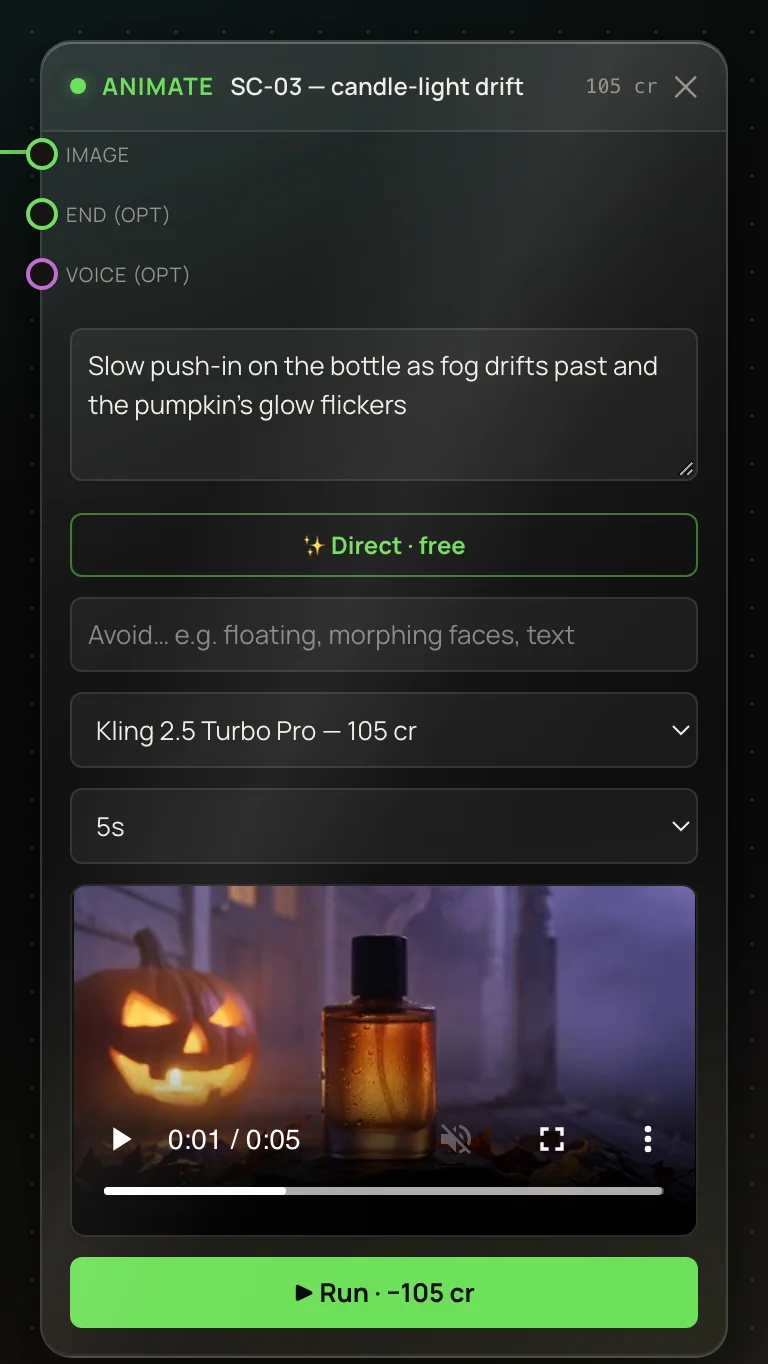
An Animate box with image, end and voice sockets, a prompt, the Direct button, an Avoid box, model and length pickers, and the finished clip.

end (opt) appears on models that can finish on a chosen picture — wire one in and the clip ends there. See Using an end frame.

voice (opt) takes a Voice track. It plays as this clip’s narration when you render the film.

✨ Direct · free turns rough notes into a full motion prompt. Type a few words (“slow push-in, fog”), press it, and an AI film director rewrites them using your picture — and fills in the Avoid box. Pressing is free; 9 credits are added once, when the box runs.

Status dots

Boxes that run show a dot beside their name:

Not run yetRunningDoneFailed — credits refunded

Run all

▶ Run all in the toolbar runs every box that hasn’t made a result yet. Boxes that don’t depend on each other run at the same time; a box waits only for the boxes wired into it. The button shows the estimated total, and each box charges as it runs.

If a box fails, its credits come back and the boxes that need it are skipped — the rest keep going. Fix it and press Run all again; finished boxes aren’t run twice.

More in Flows

← Back to the Help Center