Expanding an image (outpaint)
Turn a square into a widescreen banner or a story, with the new edges filled in.
Expand grows a picture past its edges and invents what was never in the frame. A square product shot becomes a 16:9 banner; a landscape becomes a 9:16 story.
- Where
- Studio → Edit lane → Bria Expand or Ideogram Reframe
- Cost
- A flat 8 or 12 credits a picture, shown on the button
- Saved to
- Your Library, automatically
Your picture (wide)

Expanded to square

Expand a picture
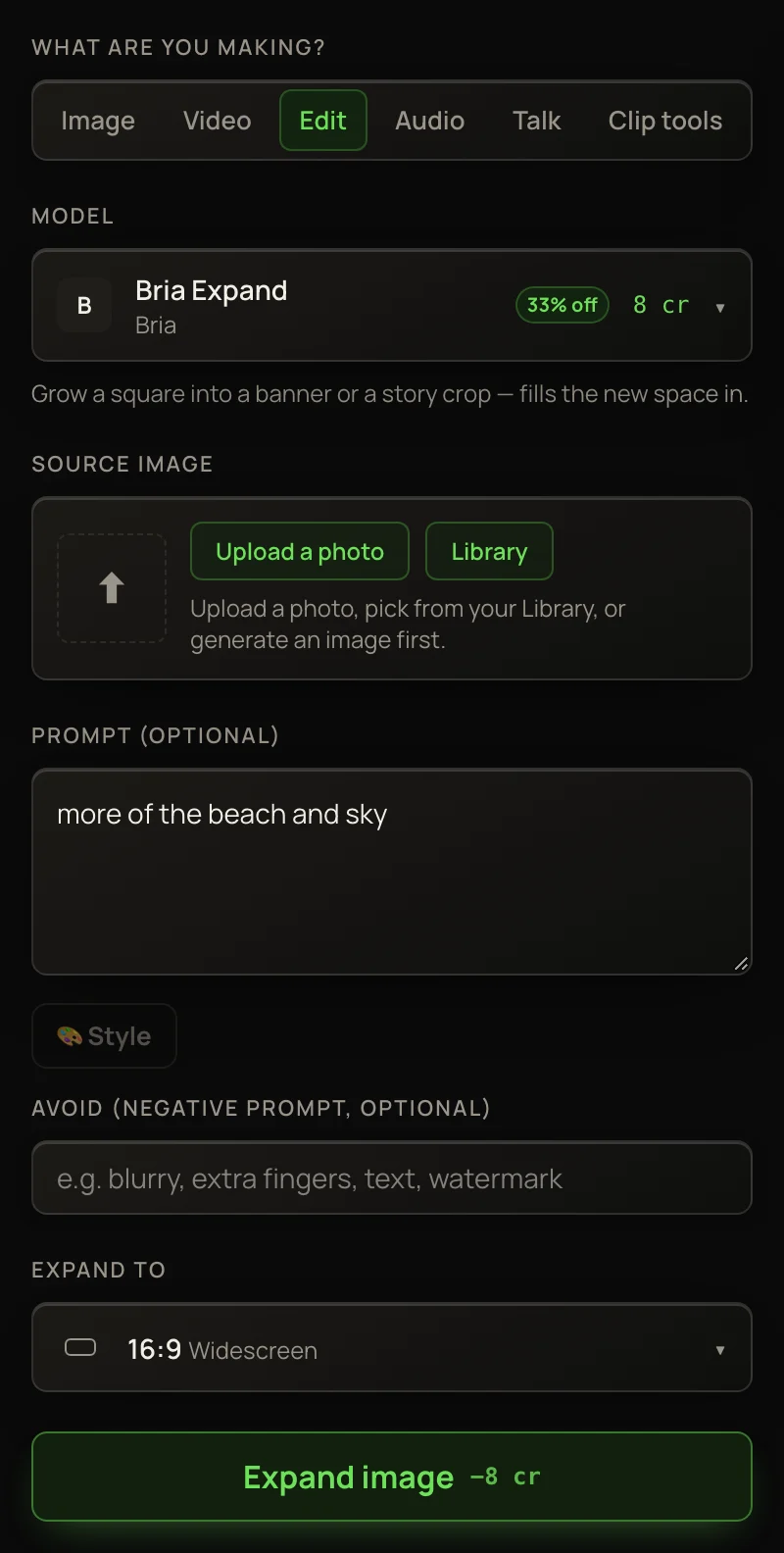
- 1In the Studio, pick the Edit lane. Open the Model list and pick Bria Expand or Ideogram Reframe.
- 2Under Source image, press Upload a photo or Library.
- 3With Bria Expand, you can say what should fill the new space in Prompt (optional): “more of the beach”, “a plain studio backdrop”.
- 4Open Expand to and pick the shape you want to end up with.
- 5Press Expand image.
Two tools
Bria Expand
The budget pick. Makes the exact shape you choose. An optional prompt, an Avoid box and 🎨 Style steer what fills the new space.
Ideogram Reframe
The quality pick. No prompt: it reads the picture and continues it. It makes five shapes — 1:1, 4:3, 16:9, 3:4 and 9:16.
Ideogram Reframe rounds other picks to the nearest of its five: 3:2 and 2:1 come back 16:9, 2:3 and 1:2 come back 9:16, and 4:5 comes back 3:4. For one of those shapes exactly, use Bria Expand.
Tips
Keep the subject away from the edges you’re growing into. Anything touching the border gets continued, not kept as it is.
To make the result bigger, switch to an upscaler, press Library and pick the expanded picture — it’s the newest. Otherwise a photo you uploaded or picked earlier stays the source.
More in Creating Images, Video & Audio
Generating images
Make one to four pictures from a prompt, in the shape you need.
Editing photos with instructions
Change any picture by describing the change in plain words.
Upscaling images
Make a picture bigger and sharper, from a quick cheap sharpen to brand-new fine detail.
Removing objects with the erase brush
Paint over anything and it disappears, with the background filled in.