🏷 Crisp Upscale is 20% off — 2 credits instead of 2.5Try it•🏷 Creative Upscale is 20% off — 50 credits instead of 62.5Try it•🏷 Clarity Upscaler is 20% off — 6 credits a megapixel instead of 7.5Try it•🏷 Qwen Edit 2511 is 20% off — 6 credits instead of 7.5Try it•🏷 FLUX Erase is 20% off — 10 credits instead of 12.5Try it•🏷 Seedream 4.5 Edit is 20% off — 8 credits instead of 10Try it•🏷 Seedream 5 Flash Edit is 20% off — 6 credits instead of 7.5Try it•🏷 Nano Banana 2 Edit is 20% off — 16 credits instead of 20Try it•🏷 Nano Banana 2.1 Edit is 20% off — 10 credits instead of 12.5Try it•🏷 FLUX.2 Klein 9B Edit is 21% off — 5 credits instead of 6.3Try it•🏷 Ideogram Character is 20% off — 30 credits instead of 37.5Try it•🏷 GPT Image 2 Edit is 20% off — 43 credits instead of 53.8Try it•🏷 GPT Image 2.5 Flare Edit is 20% off — 11 credits instead of 13.8Try it•🏷 GPT Image 2.5 Sunburst Edit is 20% off — 11 credits instead of 13.8Try it•🏷 Meta Muse Edit is 20% off — 2 credits instead of 2.5Try it•🏷 Grok Imagine Edit is 21% off — 5 credits instead of 6.3Try it•🏷 Bria Expand is 20% off — 8 credits instead of 10Try it•🏷 Ideogram Reframe is 20% off — 12 credits instead of 15Try it•🏷 Topaz Video Upscale is 20% off — 4 credits a second instead of 5Try it•🏷 FLUX Video Upscale is 20% off — 28 credits a second instead of 35Try it•🏷 Grok Imagine Extend is 20% off — 20 credits a second instead of 25Try it•🏷 Lucy Edit Pro is 20% off — 30 credits a second instead of 37.5Try it•🏷 Kling O3 4K Edit is 20% off — 84 credits a second instead of 105Try it•🏷 Luma Modify is 20% off — 70 credits a second instead of 87.5Try it•✨ New: Nano Banana 2.1Try it•✨ New: Grok Video 1.5 LiteTry it•Credits never expire — whatever you buy rolls over foreverSee pricing•

Rendering a film from your flow

Join your finished clips into one MP4, in canvas order, with their own sound or your narration.

🎞 Render film joins the finished clips on your canvas into one MP4 video. The clips come from your Animate and Talk boxes.

Where
The Flow toolbar, once at least one clip is finished
Price
5 credits plus 1 per clip — shown on the button. Refunded if the render fails.
Limits
Up to 50 clips per film, and 5 films waiting or rendering at once

Render your film

  1. 1
    Run every Animate and Talk box you want in the film. Only boxes with a finished clip are used.
  2. 2
    Line the boxes up in the order they should play. The clip whose box sits furthest left plays first. Boxes stacked in exactly one column, the way recipes lay them out, play top to bottom.
  3. 3
    Click 🎞 Render film in the toolbar and confirm.
  4. 4
    A window shows the progress: Waiting for the render worker…, then Stitching your clips…. It usually takes under a minute. Keep the tab open.
  5. 5
    When it’s done, play the film in the window and click Open / download MP4.
TipThe film is also saved to your Library, named after the flow and filed in its collection — so it’s still there if you close the window.

Sound

Each clip brings one sound into the film:
Narration
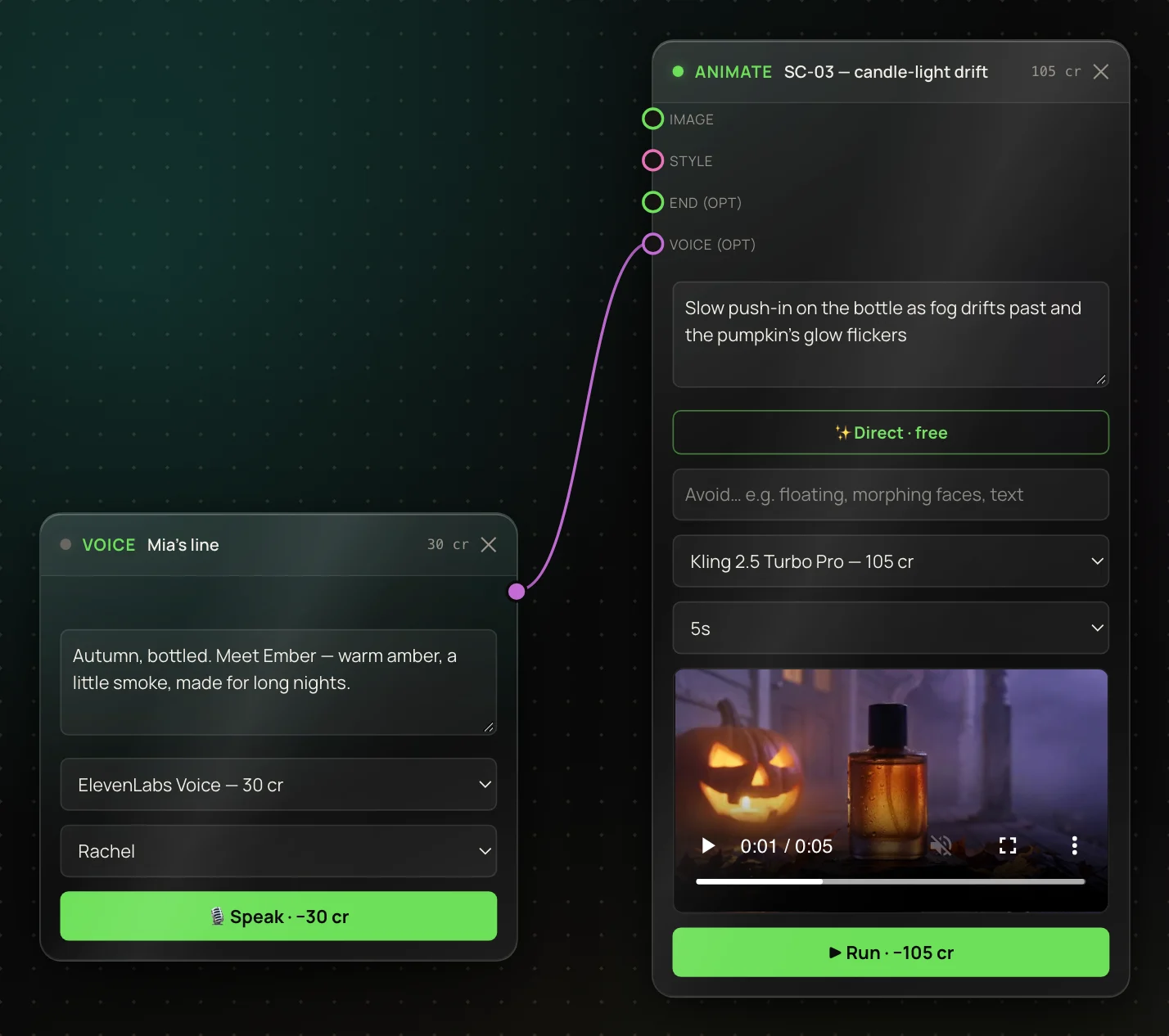
A Voice box wired with a violet cable into an Animate box’s voice (opt) socket. It replaces that clip’s own sound and is cut to the clip’s length, so keep it short. If it’s shorter, the rest of the clip is silent.
The clip’s own sound
Talk clips keep their speech. Clips from models that make sound, like Veo, keep theirs too — as long as no narration is wired in.
Silence
Clips from silent models play silent, unless you add narration.
A Voice box wired with a violet cable into the voice socket of an Animate box, so its narration plays over that clip in the film.

Picture size

The first clip sets the film’s shape and size. Clips in a different shape are fitted inside it, with black bars. Films are at most 1080 pixels on the long side.

Change it and render again

Swap a clip by changing its box and pressing that box’s ▶ Run, or drag boxes to change the order. Then press 🎞 Render film again. Each render is charged on its own, and a failed one is refunded automatically. Recipes that end in a film, run from the Recipes page, are rendered the same way — see Make something with the Recipes page.

More in Flows

← Back to the Help Center