🏷 Crisp Upscale is 20% off — 2 credits instead of 2.5Try it•🏷 Creative Upscale is 20% off — 50 credits instead of 62.5Try it•🏷 Clarity Upscaler is 20% off — 6 credits a megapixel instead of 7.5Try it•🏷 Qwen Edit 2511 is 20% off — 6 credits instead of 7.5Try it•🏷 FLUX Erase is 20% off — 10 credits instead of 12.5Try it•🏷 Seedream 4.5 Edit is 20% off — 8 credits instead of 10Try it•🏷 Seedream 5 Flash Edit is 20% off — 6 credits instead of 7.5Try it•🏷 Nano Banana 2 Edit is 20% off — 16 credits instead of 20Try it•🏷 Nano Banana 2.1 Edit is 20% off — 10 credits instead of 12.5Try it•🏷 FLUX.2 Klein 9B Edit is 21% off — 5 credits instead of 6.3Try it•🏷 Ideogram Character is 20% off — 30 credits instead of 37.5Try it•🏷 GPT Image 2 Edit is 20% off — 43 credits instead of 53.8Try it•🏷 GPT Image 2.5 Flare Edit is 20% off — 11 credits instead of 13.8Try it•🏷 GPT Image 2.5 Sunburst Edit is 20% off — 11 credits instead of 13.8Try it•🏷 Meta Muse Edit is 20% off — 2 credits instead of 2.5Try it•🏷 Grok Imagine Edit is 21% off — 5 credits instead of 6.3Try it•🏷 Bria Expand is 20% off — 8 credits instead of 10Try it•🏷 Ideogram Reframe is 20% off — 12 credits instead of 15Try it•🏷 Topaz Video Upscale is 20% off — 4 credits a second instead of 5Try it•🏷 FLUX Video Upscale is 20% off — 28 credits a second instead of 35Try it•🏷 Grok Imagine Extend is 20% off — 20 credits a second instead of 25Try it•🏷 Lucy Edit Pro is 20% off — 30 credits a second instead of 37.5Try it•🏷 Kling O3 4K Edit is 20% off — 84 credits a second instead of 105Try it•🏷 Luma Modify is 20% off — 70 credits a second instead of 87.5Try it•✨ New: Nano Banana 2.1Try it•Credits never expire — whatever you buy rolls over foreverSee pricing•
🏷 Crisp Upscale is 20% off — 2 credits instead of 2.5Try it•🏷 Creative Upscale is 20% off — 50 credits instead of 62.5Try it•🏷 Clarity Upscaler is 20% off — 6 credits a megapixel instead of 7.5Try it•🏷 Qwen Edit 2511 is 20% off — 6 credits instead of 7.5Try it•🏷 FLUX Erase is 20% off — 10 credits instead of 12.5Try it•🏷 Seedream 4.5 Edit is 20% off — 8 credits instead of 10Try it•🏷 Seedream 5 Flash Edit is 20% off — 6 credits instead of 7.5Try it•🏷 Nano Banana 2 Edit is 20% off — 16 credits instead of 20Try it•🏷 Nano Banana 2.1 Edit is 20% off — 10 credits instead of 12.5Try it•🏷 FLUX.2 Klein 9B Edit is 21% off — 5 credits instead of 6.3Try it•🏷 Ideogram Character is 20% off — 30 credits instead of 37.5Try it•🏷 GPT Image 2 Edit is 20% off — 43 credits instead of 53.8Try it•🏷 GPT Image 2.5 Flare Edit is 20% off — 11 credits instead of 13.8Try it•🏷 GPT Image 2.5 Sunburst Edit is 20% off — 11 credits instead of 13.8Try it•🏷 Meta Muse Edit is 20% off — 2 credits instead of 2.5Try it•🏷 Grok Imagine Edit is 21% off — 5 credits instead of 6.3Try it•🏷 Bria Expand is 20% off — 8 credits instead of 10Try it•🏷 Ideogram Reframe is 20% off — 12 credits instead of 15Try it•🏷 Topaz Video Upscale is 20% off — 4 credits a second instead of 5Try it•🏷 FLUX Video Upscale is 20% off — 28 credits a second instead of 35Try it•🏷 Grok Imagine Extend is 20% off — 20 credits a second instead of 25Try it•🏷 Lucy Edit Pro is 20% off — 30 credits a second instead of 37.5Try it•🏷 Kling O3 4K Edit is 20% off — 84 credits a second instead of 105Try it•🏷 Luma Modify is 20% off — 70 credits a second instead of 87.5Try it•✨ New: Nano Banana 2.1Try it•Credits never expire — whatever you buy rolls over foreverSee pricing•
Save a product or object once — its shape, colours and label — and it comes out the same wherever you put it.
A prop is an object that keeps coming back: your product, a bag of coffee, a pocket watch that matters to the story. You save a picture of it under a name, like @gullrock_bag. Write that name in a prompt and the AI copies its shape, colours, materials and label — instead of inventing an object that just fits the words.
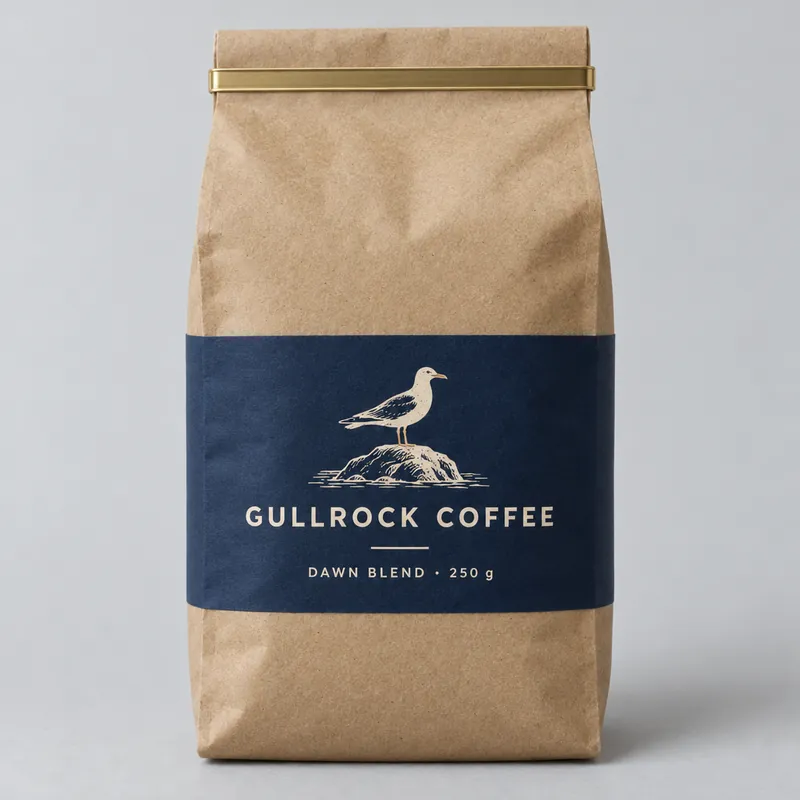
The saved prop: @gullrock_bag
This is the picture the AI is shown when the prompt says @gullrock_bag.
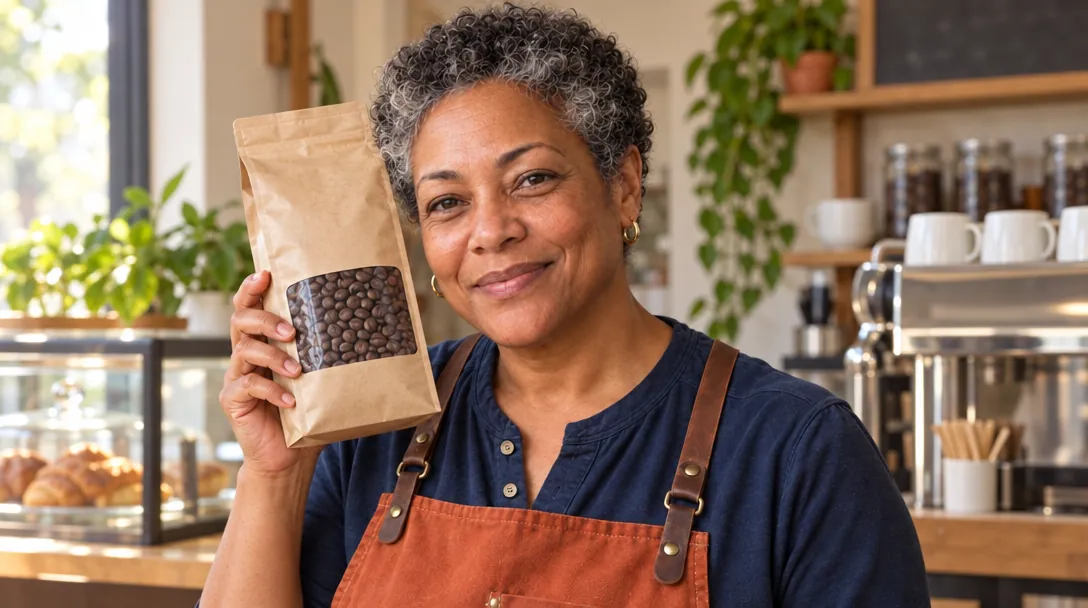
Without it — the AI makes one up
Prompt said: “@rosa holds up a bag of coffee beans next to her face and smiles at the camera, in a small café”
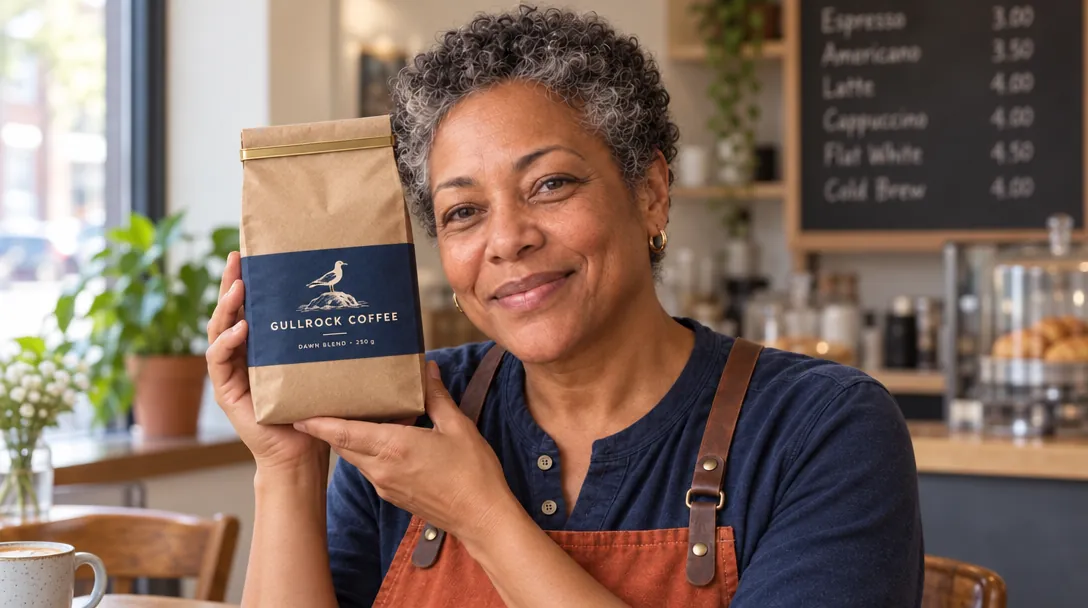
With @gullrock_bag
Prompt said: “@rosa holds up @gullrock_bag next to her face and smiles at the camera, in a small café”
Look for: Without the prop, any brown coffee bag with a window. With @gullrock_bag, the saved bag: gold tie, navy band, the seagull and the name GULLROCK COFFEE.
Pictures
1 to 20. One clear picture is enough for a simple product
Description
Optional — but without one, models that only read words can’t use it
Best with
A model that looks at pictures
Cost
Free to make. Using one costs only the model’s normal price
Which picture to give it
All three props in the example stories were made from one picture each, and all three follow the same rules:
@gullrock_bag
@brass_watch
@studio_mic
1Just the object
Nothing else in the picture — no hands, no other products.
2A plain background
The prop leaves out its background anyway. Your prompt says where it is.
3Label facing the camera
If it has a label or logo, show it straight on and sharp. That’s what gets copied.
4More angles if it turns
For an object that will be seen from the side or back, add a picture of each side.
Your own product
Take a photo of it against a plain wall or a sheet of paper, in soft daylight, and upload it. No photo yet? Make one: describe the object as a “product photo… on a plain light-grey studio background, front view” — that’s how the Gullrock bag was made.
NoteBig words on a label, like GULLROCK COFFEE, come through well. Very small print may come out blurred or misspelt — check it in every picture.
Make the prop
1
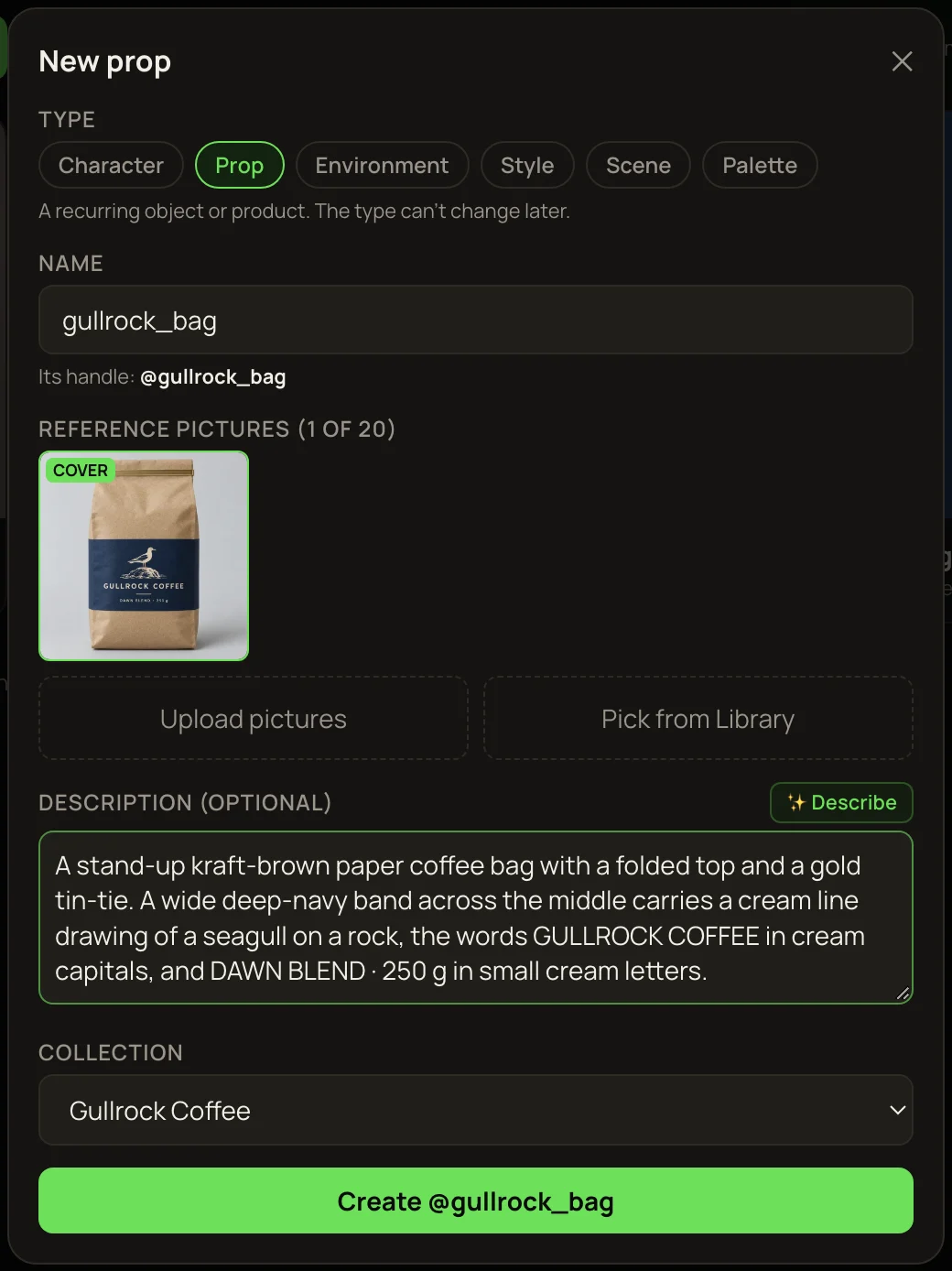
In the Library, press Make entity or style from pictures, tick the picture and press Make entity.
2
Pick Prop and type a name, like gullrock_bag.
3
Press ✨ Describe to have the description written for you, and read it. It’s optional for a prop, but it’s what models that only read words get — so add one.
4
Press Create @….
The Gullrock bag being saved as a prop.
Use the prop
Type @ and pick it, then say what happens to it — who holds it, where it stands. For example “@rosa holds up @gullrock_bag next to her face”. A prop and a character work well together in one prompt.
TipDon’t describe the product in the prompt — its picture already carries the look. Just name it.
For the label to really match, make the picture with a model that looks at pictures. The tag under the prompt shows “@gullrock_bag sends 1 picture” when it does (see Why the model you pick matters).
More examples
Same idea, two more objects. In each, the only words that changed are the ones in bold.
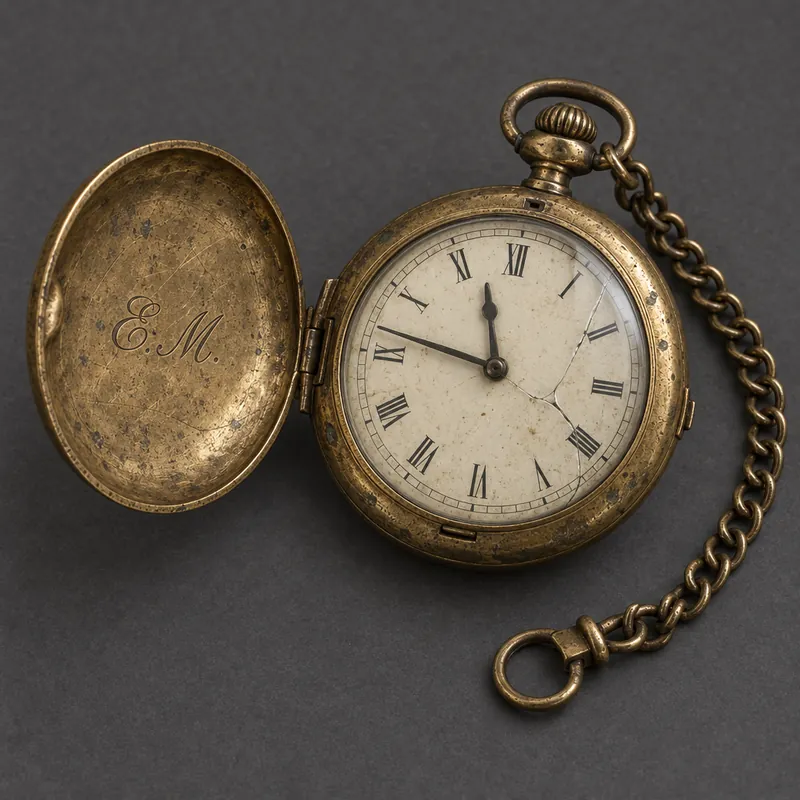
The saved prop: @brass_watch
This is the picture the AI is shown when the prompt says @brass_watch.
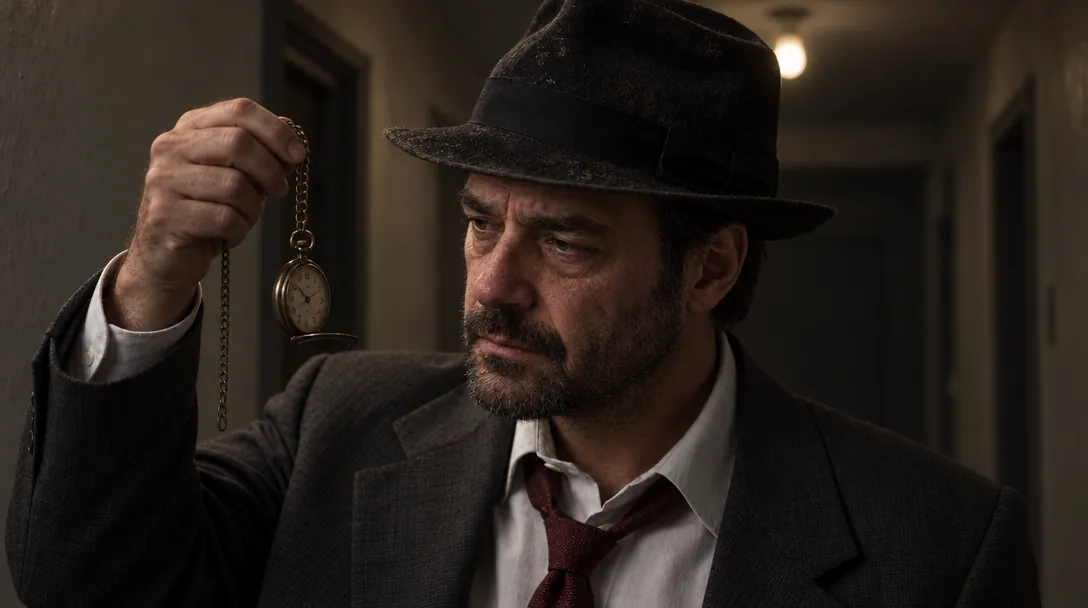
Without it — the AI makes one up
Prompt said: “@quell holds up an old pocket watch by its chain at eye level and studies it closely…”
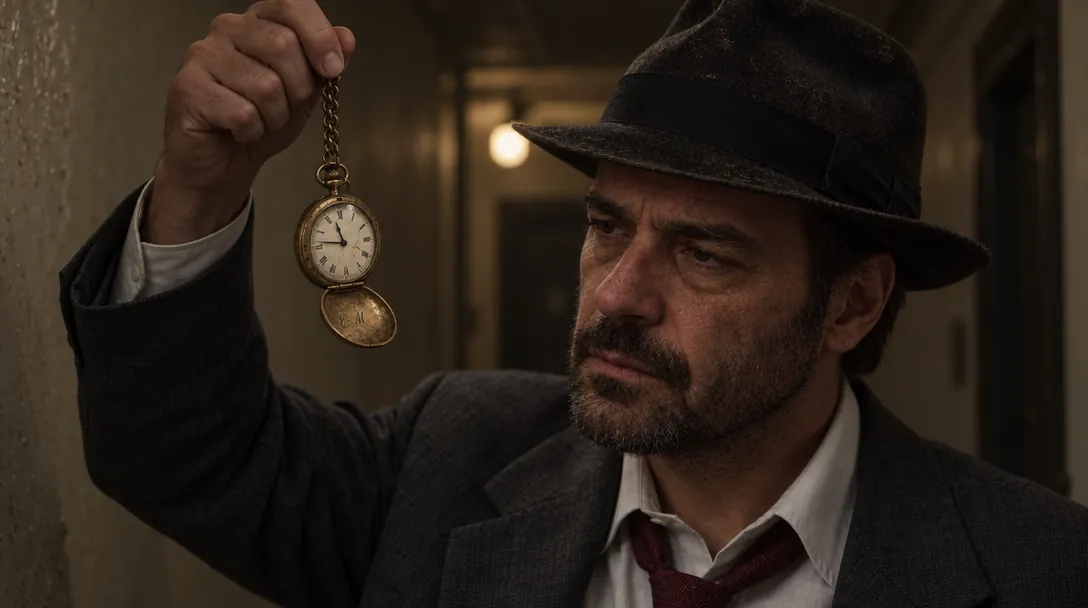
With @brass_watch
Prompt said: “@quell holds up @brass_watch by its chain at eye level and studies it closely…”
Look for: Without the prop, a small plain watch. With @brass_watch, the saved one: open lid, cream dial with Roman numerals, worn brass case.
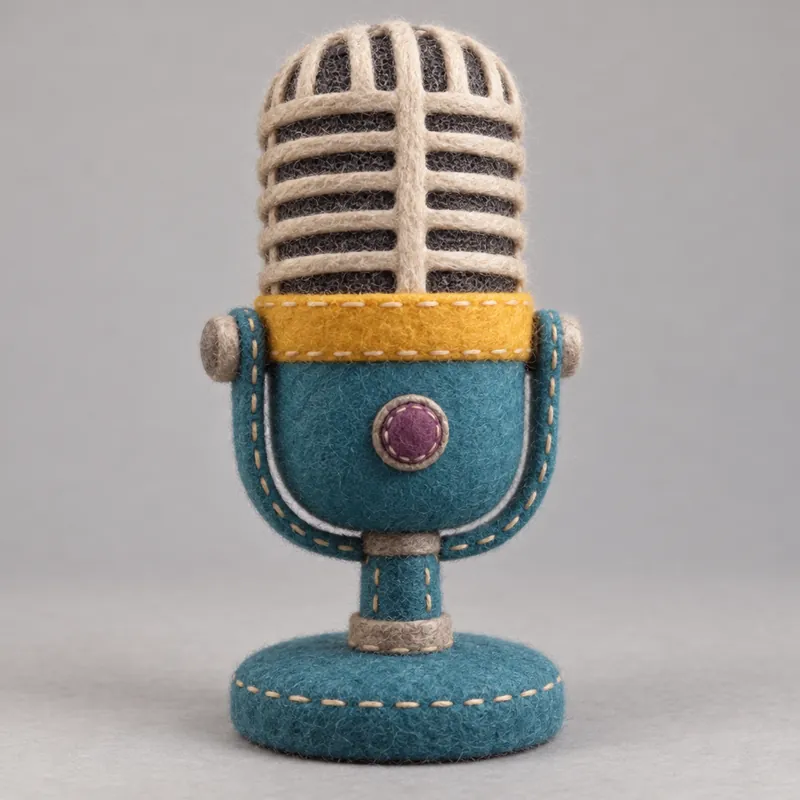
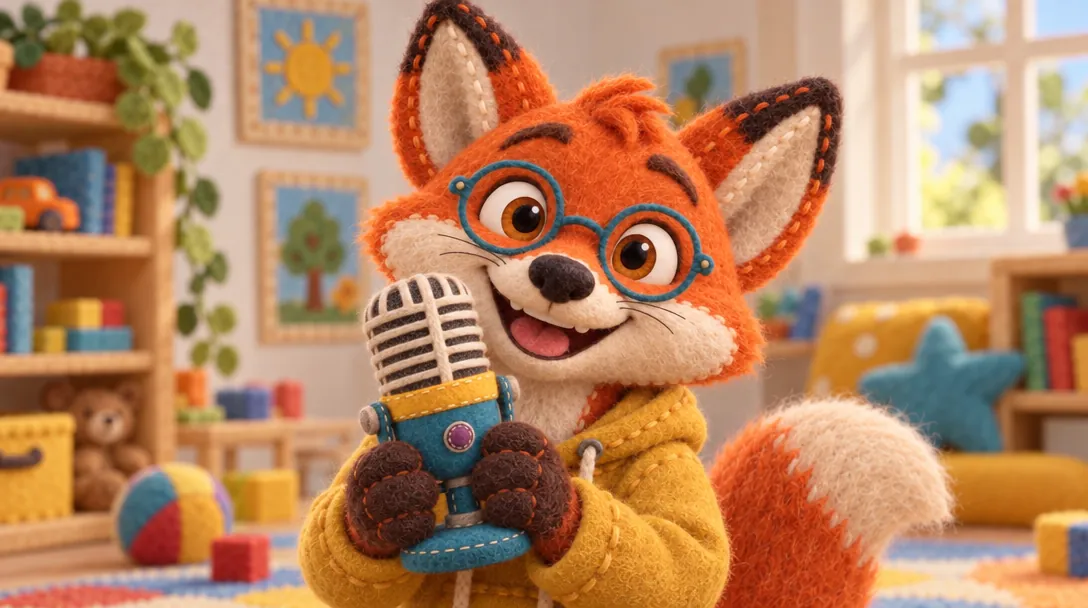
The saved prop: @studio_mic
This is the picture the AI is shown when the prompt says @studio_mic.
Without it — the AI makes one up
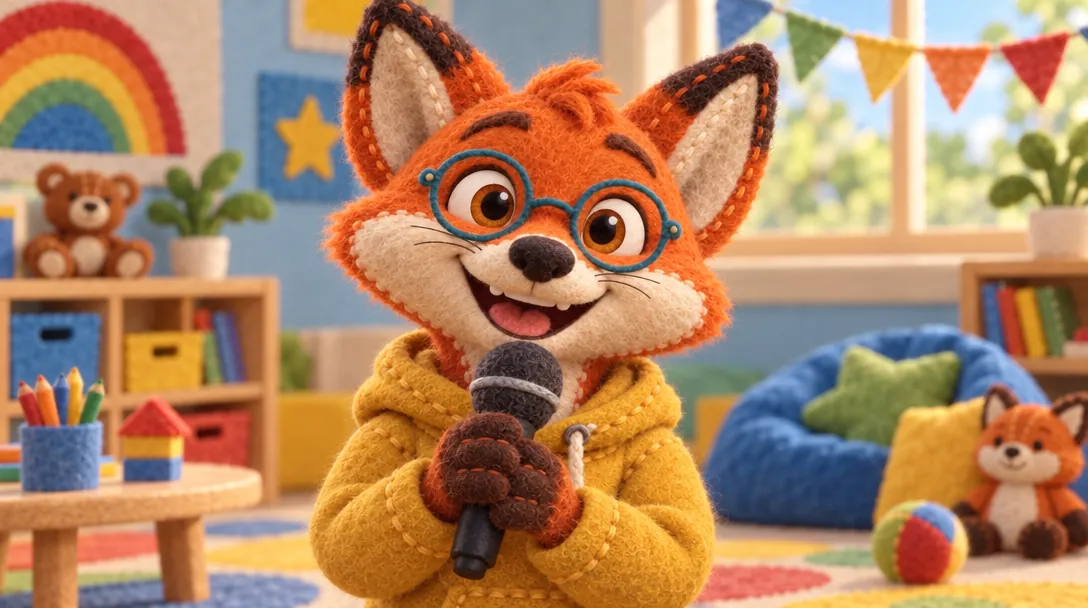
Prompt said: “@pembrook holds a microphone up near his mouth with both paws and grins at the camera…”
With @studio_mic
Prompt said: “@pembrook holds @studio_mic up near his mouth with both paws and grins at the camera…”
Look for: Without the prop, a plain black microphone. With @studio_mic, his own: teal body, chrome grille, yellow ring.
Props in video
As with characters, the surest way is to make each shot as a picture first, then animate it — the clip keeps the object from the picture. On Kling O3 · Entities, a prop with two or more pictures goes in as a Kling “element”, which helps it keep its shape as it moves. A prop with one picture goes in as a plain picture.
Heads upObjects can vanish or change partway through a clip — in the example films, the pocket watch and a beaker both went missing in early tries. Watch every clip to the end before you use it.
If it doesn’t look right
?A different object
Check the tag under the prompt. “Sends its description” means the model only reads words — switch to one that looks at pictures.
AaThe label is wrong
Use a sharper, straight-on picture as the cover, and keep the label’s words big and few.