Character: the same person in every shot
Save a person, animal or cartoon character once, and they come out with the same face in every picture and clip.
A character is a person, an animal or a cartoon figure you want to keep the same from shot to shot. You save a few pictures of them under a name, like @quell. Write that name in a prompt and the AI copies their face, hair and build from the pictures — not just someone who fits a description.
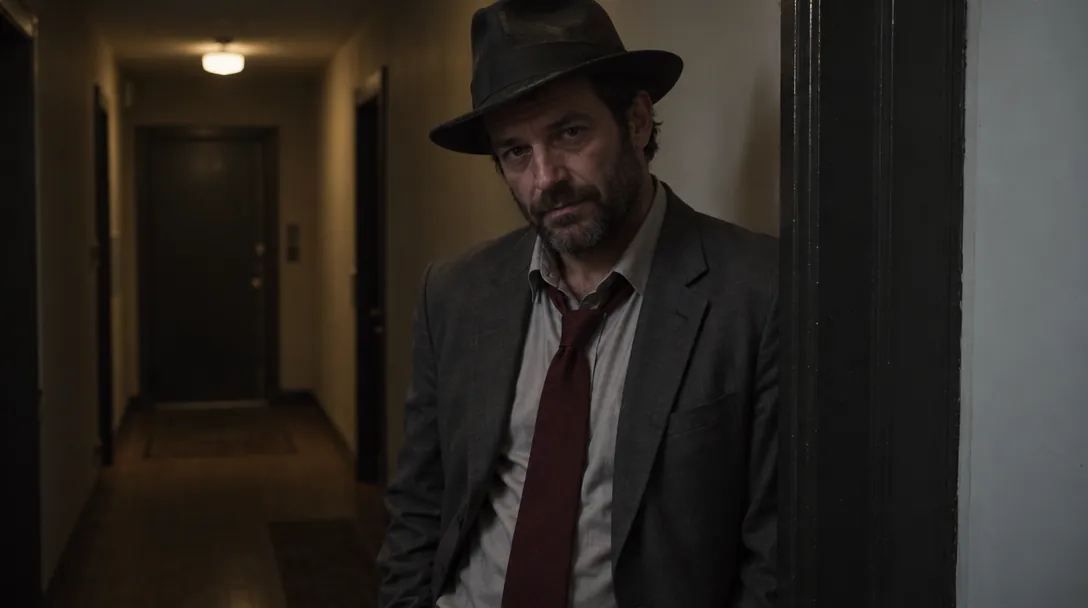
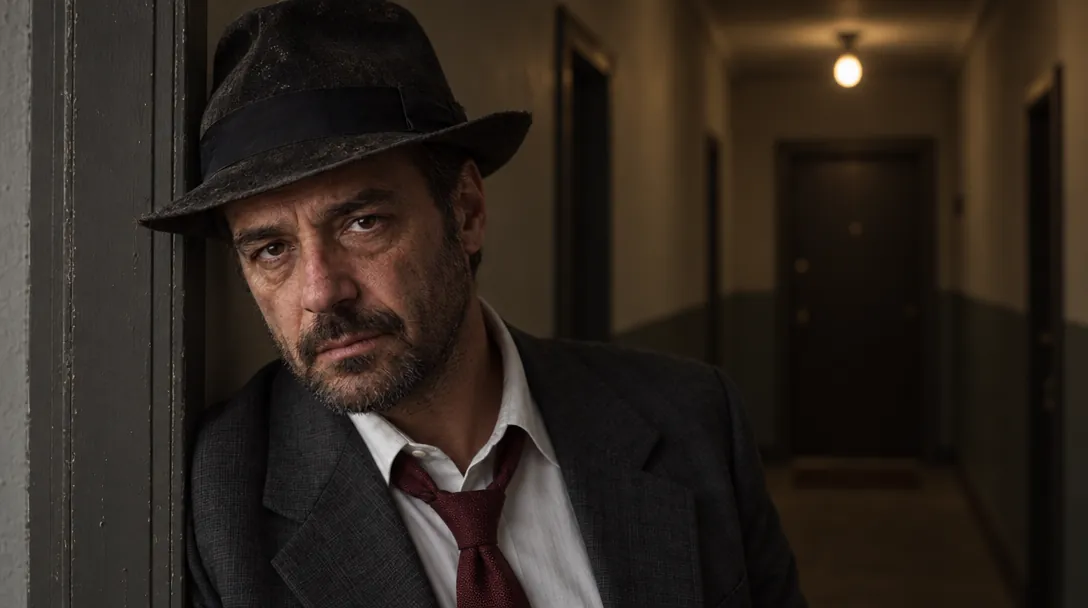
- Pictures
- 1 to 20. Rosa, Quell and Pembrook have 3 each
- Description
- Required — models that only read words get it instead of the pictures
- Best with
- A model that looks at pictures (see below)
- Cost
- Free to make. Using one costs only the model’s normal price
Which pictures to give it
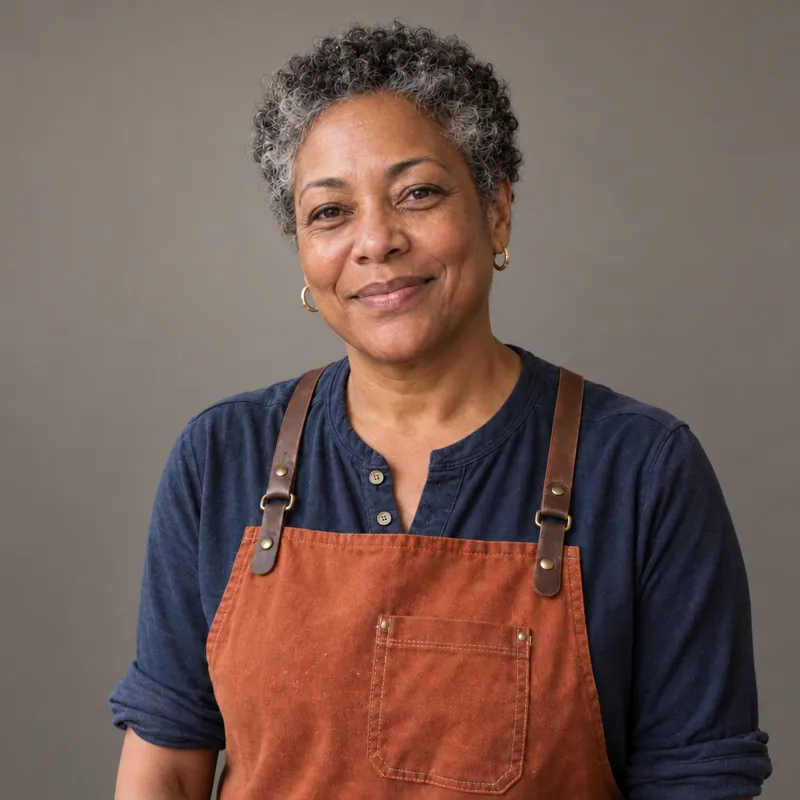
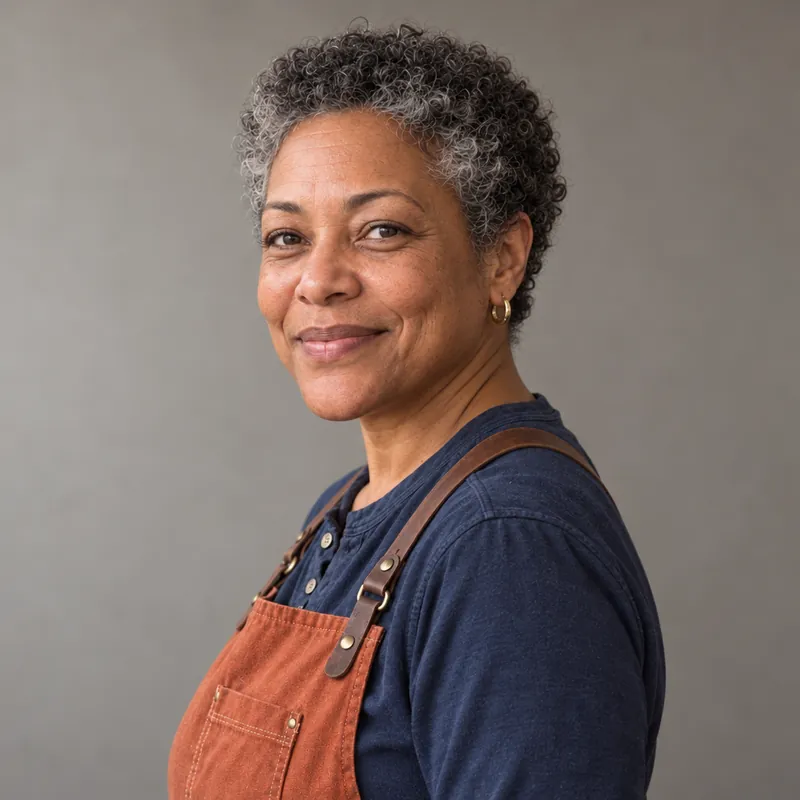
Here are Rosa’s three pictures from the Gullrock Coffee story. They follow a few simple rules:
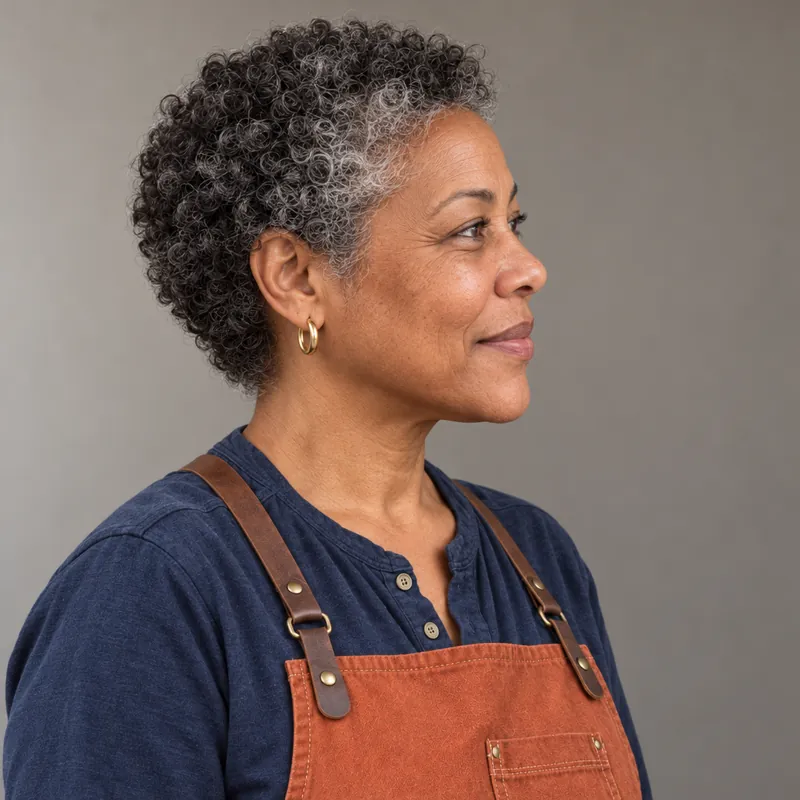
No pictures of your character yet? Make them
This is how Rosa’s three pictures were made, from nothing:
- 1Make one picture of them with any picture model. Describe the person and put them in front of a plain wall, for example “Photo, head-and-shoulders portrait of a coffee roaster in her early 50s facing the camera with a warm half-smile…”.
- 2Open that picture in a model that looks at pictures (Rosa’s used GPT Image 2.5 Sunburst Edit) and ask for a new angle: “The same woman, same face, hair, earrings and clothes exactly, now turned three-quarters to the left and glancing back toward the camera. Plain warm-grey studio wall behind her.”
- 3Do it once more for the side view: “…shown in side profile facing right.”
- 4Save the three pictures as one character (next section).
Make the character
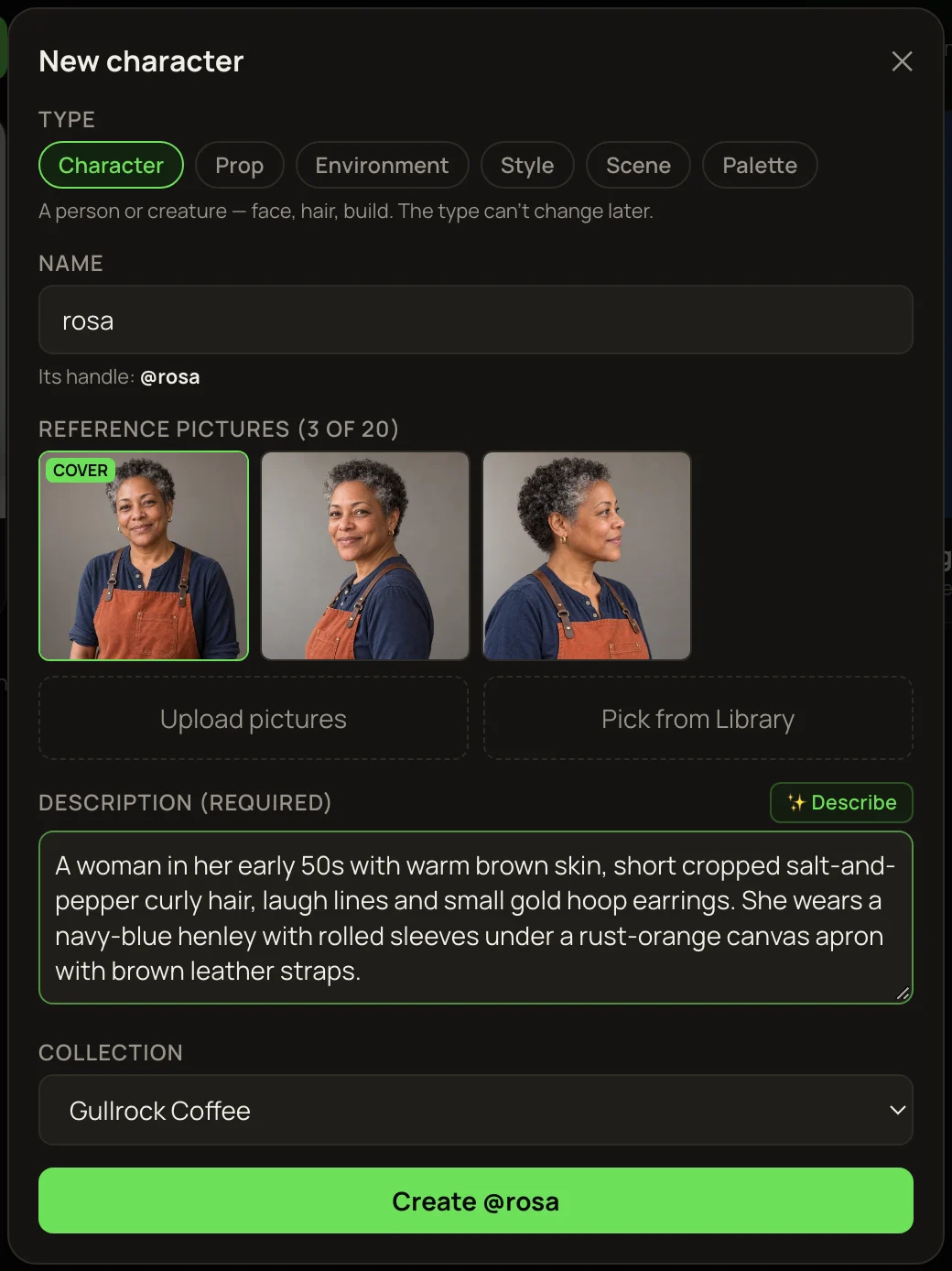
- 1In the Library, press Make entity or style from pictures, tick the pictures and press Make entity. (Or press the + beside Entities in the left menu and add the pictures in the window.)
- 2Keep the kind on Character and type a name. It becomes the @name you type in prompts.
- 3Press ✨ Describe to have the description written from the pictures, then read it. A character must have one.
- 4Press Create @….
Use the character
Type @ in any prompt box and pick them. Then write what they do, what they wear if it should change, and where they are — for example “@quell holds up an old pocket watch by its chain and studies it closely”.
For the face to really match, make the picture with a model that looks at pictures. The tag under the prompt shows which you have: “@quell sends 3 pictures” means the AI sees him; “sends its description” means it only reads about him (see Why the model you pick matters).
Cartoon characters: words get closer
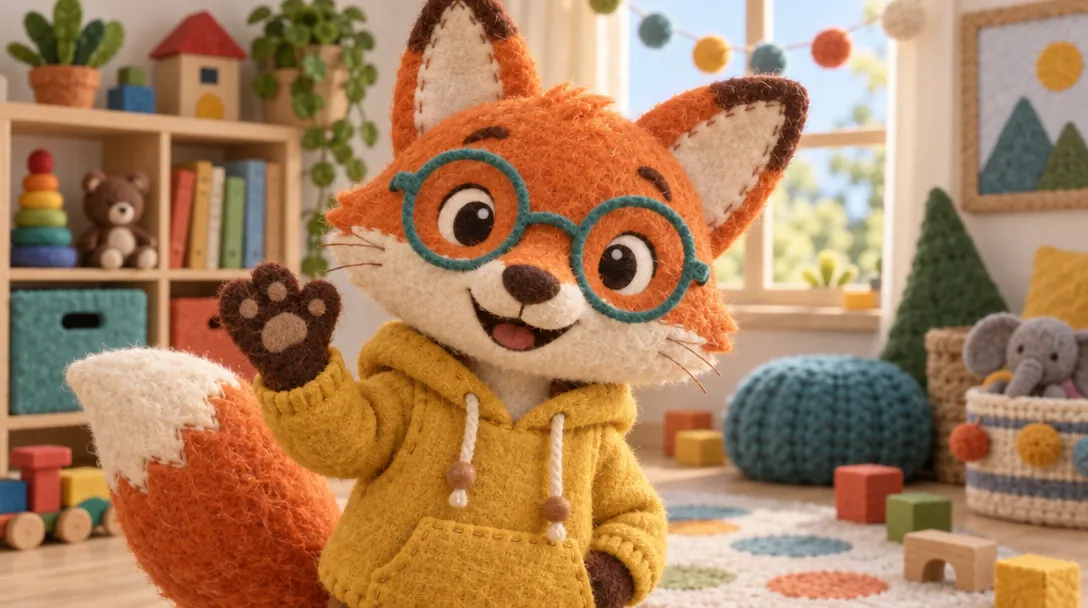
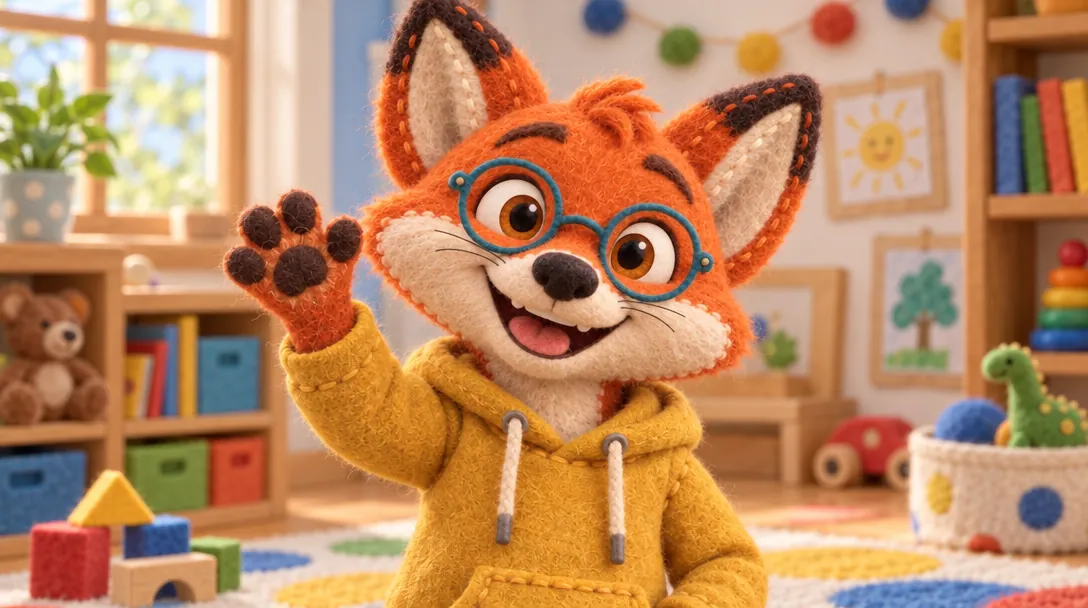
A simple cartoon design is easier to describe than a real face. With Pembrook the fox, the written description alone came very close — but compare the eyes and the shape of the face. Only the character gets him exactly.
Characters in video
The way all three example films were made: make each shot as a picture with the character, check it, then animate that picture in the Video lane. The clip keeps the face from the picture.
Or use Kling O3 · Entities, which builds a clip straight from your entities. A character with two or more pictures goes in as a Kling “element” — its front picture plus its other angles — which helps the face hold up as they move. The tag under the prompt says so:
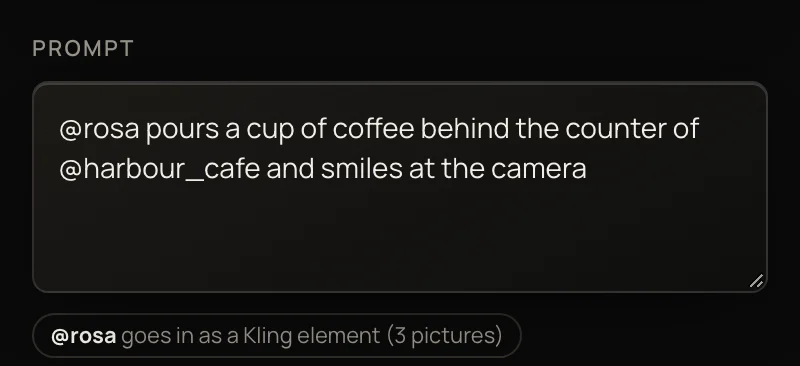
See Entities in video for both ways, with the Gullrock film.