🏷 Crisp Upscale is 20% offTry it

Palette: keep to your brand colours

Save 3 to 6 brand colours under one name, and every picture and clip you add it to uses them as its main colours.

A palette is a set of 3 to 6 colours saved under one name, like @gullrock_colours. Add it to a prompt and the picture uses those as its main colours. Unlike the other kinds of entity, a palette has no pictures — just the colours.


Without a palette
A Morning Ritual coffee ad: a cup of black coffee, a croissant and coffee beans on a pale stone table, with a dark brown headline.
With @gullrock_colours
The same Morning Ritual ad in Gullrock’s colours: a deep-blue table, a cream headline and cream cup, and brown coffee beans.
The same ad asked for twice. The only change on the right: @gullrock_colours at the end of the prompt. The table turned deep blue, and the headline and cup turned cream.
Colours
3 to 6 per palette
Works on
Every picture and video model — it’s sent as words
Cost
Free to make. Adding it doesn’t change a run’s price
Where
Library → Palettes in the left menu

When to use one

🛍Ads and product shots
Every ad for your brand comes out in your colours, without listing them in each prompt.
▶Thumbnails and series
A YouTube channel or a series of posts keeps one look from episode to episode.

Make a palette

  1. 1
    In the left menu, open Library → Palettes and press + New palette. (Or press the + beside Entities and pick Palette.)
  2. 2
    Type a name, like gullrock_colours. It becomes the @name you type in prompts.
  3. 3
    Pick your colours: click a colour square to choose its colour. + Add a colour adds one (up to 6), and ✕ removes one. Each colour gets a name in words beside it.
  4. 4
    Read the Models read: line. Those are the exact words every model will get.
  5. 5
    Optionally choose a Collection, then press Create @….
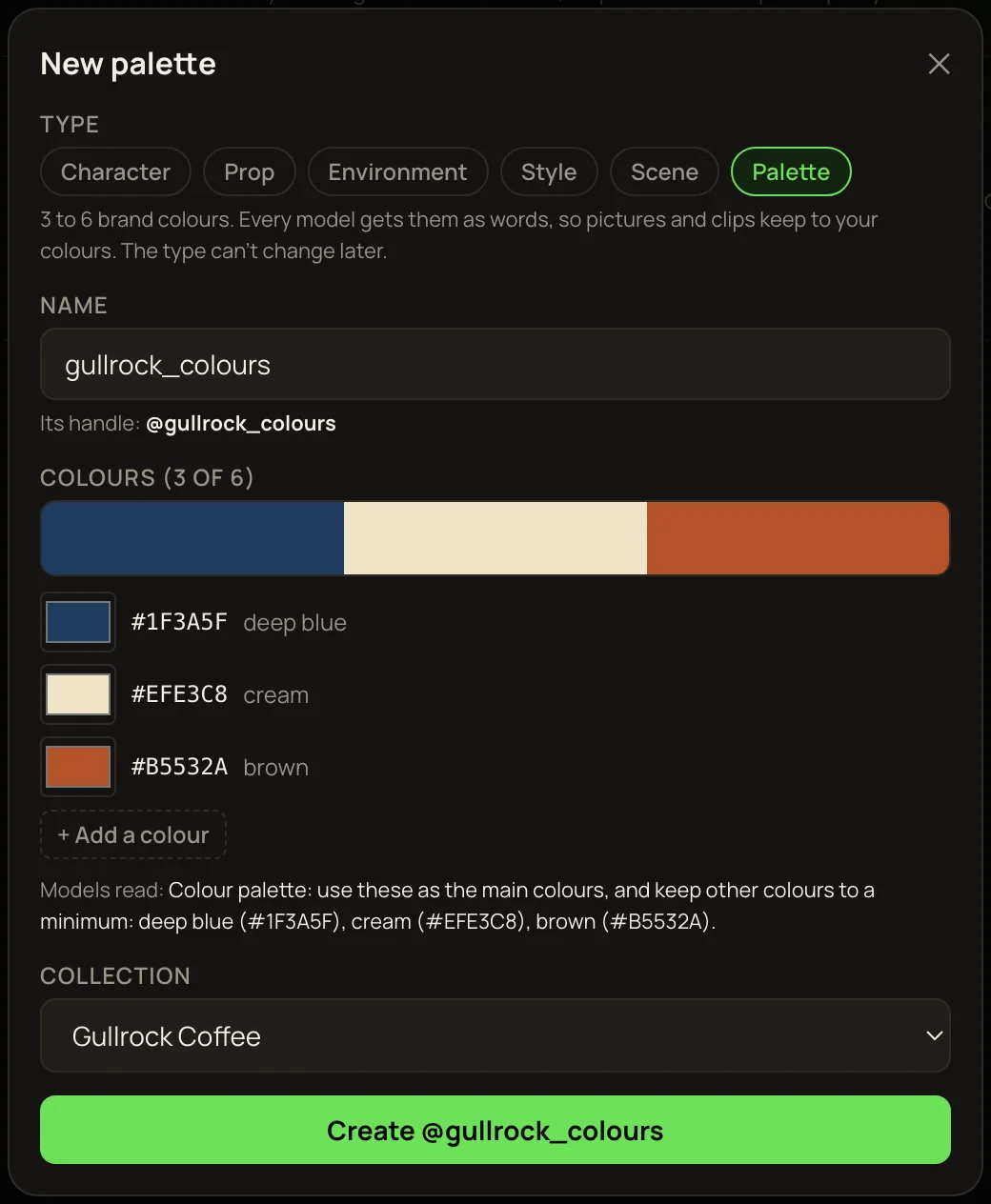
The New palette window: the name gullrock_colours, three colours — #1F3A5F deep blue, #EFE3C8 cream, #B5532A brown — + Add a colour, the Models read line, the Gullrock Coffee collection and Create @gullrock_colours.
The Gullrock palette being made. “Models read” shows the exact words every model gets.

Use it in a prompt

There are two ways.

Type @

Type @ in any prompt box and pick the palette, like any other entity. The end of the prompt is a good place for it.

The 🎨 Style button (Studio)

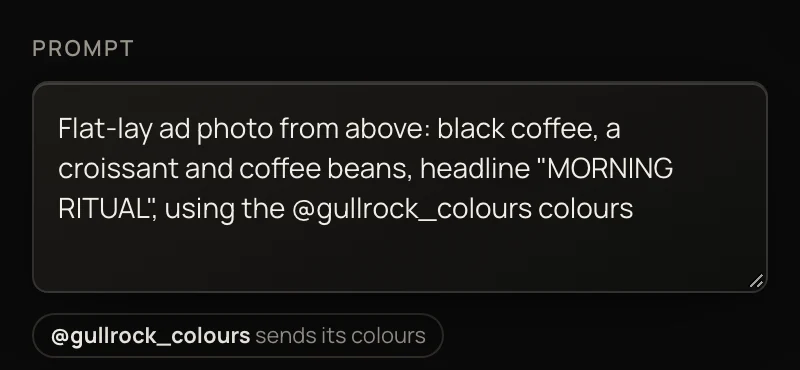
In the Studio, press 🎨 Style under the prompt. Your palettes are at the top. Pick one, and the end of your prompt gets “using the @gullrock_colours colours”.
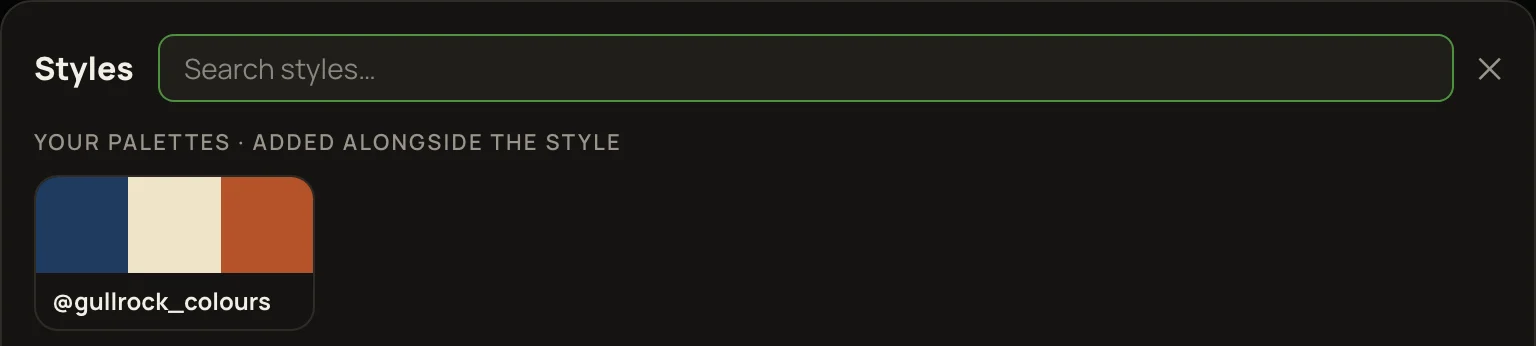
The Styles window opened from 🎨 Style: under “Your palettes · added alongside the style” is the @gullrock_colours palette with its three colours.
🎨 Style lists your palettes first.
The prompt ends “using the @gullrock_colours colours”, and the tag under it says @gullrock_colours sends its colours.
After picking it: the words added to the prompt, and the tag under it.

A palette goes alongside a style, never instead of it. So one prompt can say “in the style of @gouache-tales, using the @gullrock_colours colours”. Picking a different palette from the button swaps the old one out.

More examples

Each pair is the same prompt twice. The right side adds only the palette. All six pictures were made with GPT Image 2.5 Sunburst, a model that only reads words — a palette works there too.
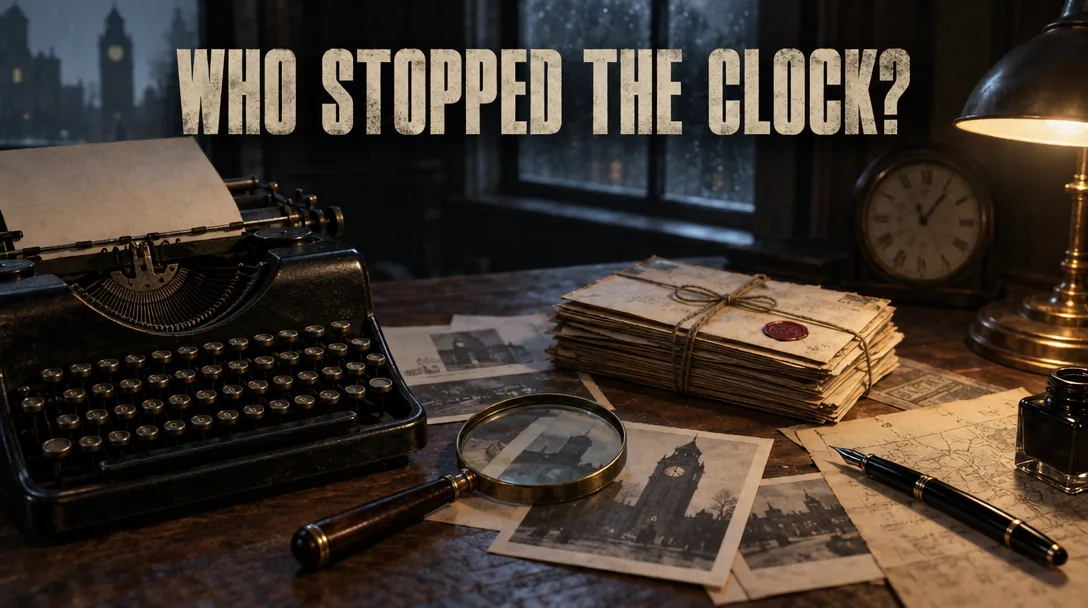

Without a palette
A detective film poster: a typewriter, letters, a magnifying glass and a pen on a desk, with the headline WHO STOPPED THE CLOCK? in pale letters.
With @noir_colours
The same poster with @noir_colours: the word STOPPED in crimson, red string and wax seal, cool blue night light.
A detective poster with @noir_colours — dark sky blue, crimson and cream. The word STOPPED and the small details turned crimson.
Without a palette
A kids’ thumbnail: a bubbling green beaker, a red rocket and planets on a bright blue background, with the headline SCIENCE IS FUN!
With @pembrook_colours
The same thumbnail with @pembrook_colours: a teal background and beaker, amber and purple planets, purple letters in the headline.
A kids’ thumbnail with @pembrook_colours — dark cyan, amber and dark purple. The whole picture moved to those three.

Getting the best results

TipA palette shows most clearly on a picture with few colours of its own — a product, a flat-lay, a poster, a thumbnail — like the examples on this page.

To change a palette’s colours later, open it in Library → Palettes, change them and press Save colours. To rename or delete it, see Change, delete or check an entity.

More in Entities

← Back to the Help Center