Upload limits and problems
What you can upload where, the size limits, and what each upload message means.
You can bring in your own pictures and video clips. Uploading is free. An upload is the starting point for a run — it isn’t added to your Library, but everything you make from it is.
What you can upload
Pictures in the Studio
For Source image, Face and End frame. Up to 10 MB. Pictures wider or taller than 2048 px are shrunk to 2048 px before they upload.
Pictures in Recipes
The same as the Studio: up to 10 MB, shrunk to 2048 px.
Pictures in Flow
An Image box takes a picture up to 10 MB. It uploads as it is, without shrinking, so a big camera photo can be over the limit.
Entity pictures
Up to 20 MB each. We keep our own copy, sized down to 1536 px. See Entities.
Video clips
In Clip tools, and for lip sync in the Talk lane. MP4 or MOV, up to 60 seconds and 90 MB.
Sound
Can’t be uploaded. Voice tracks come from your Library — make one in the Audio lane first.
Upload a picture
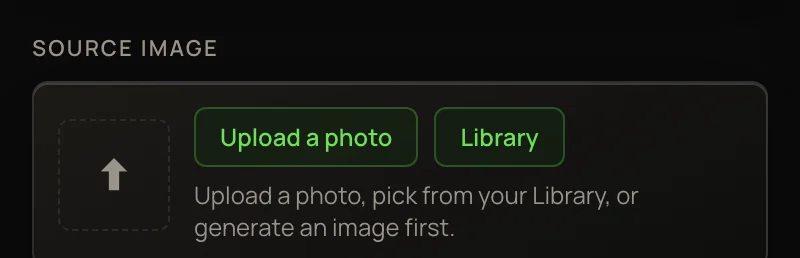
- 1In the Studio, find the Source image panel (or Face, or End frame · optional).
- 2Press Upload a photo and choose the file. To use something you’ve made, press Library instead.
- 3Wait for Uploading… to finish. The panel then says Using your uploaded photo.
JPG, PNG and WebP are the safest choices. Other picture types, like iPhone HEIC, are accepted — if a run fails on one, save it as a JPG and try again. A failed run is refunded.
Why big pictures are shrunk
One tool is priced by picture size: the Clarity Upscaler charges per megapixel of its result. Capping uploads at 2048 px keeps that price within a known limit. It’s plenty for every model, and you can upscale the result afterwards. Every other tool charges the same whatever the picture’s size.
Upload a clip
- 1Open Clip tools from the sidebar. For lip sync, open the Talk lane and pick VEED Lip Sync or Kling Lip Sync.
- 2In the Clip panel, press Upload a clip and choose an MP4 or MOV.
- 3Check the line under the buttons: it shows the clip’s length. Most clip tools charge per second of it.
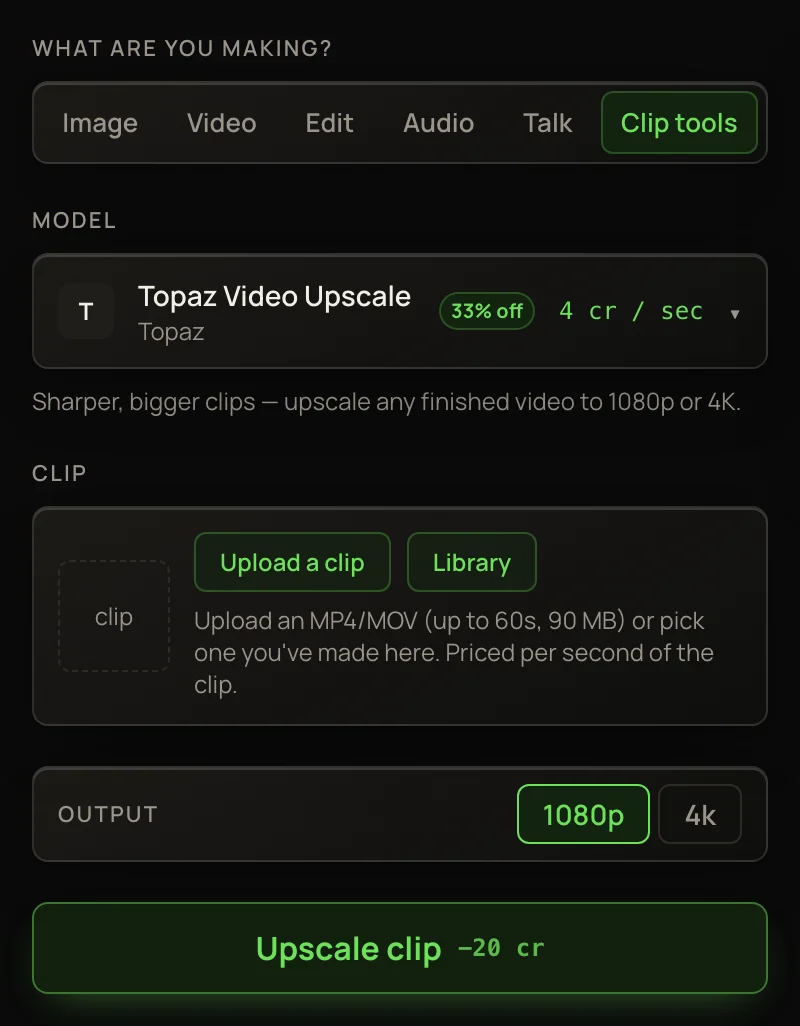
NoteSome tools take shorter clips than 60 seconds: Kling Lip Sync 2–10 s, FLUX Video Upscale up to 20 s, Grok Imagine Extend 2–15 s, and Kling O3 4K Edit 3–15 s. A clip outside the range is refused before anything is charged.
Upload messages
Pictures
“Images only (JPG, PNG, WebP).”
The file isn’t a picture. Entity pictures say “Pictures only” instead.
“Max size is 10 MB.”
The picture is too big, even after shrinking. Save it as a smaller JPG and try again.
“Max size is 20 MB.”
The same, for an entity picture.
“That file isn’t a picture we can read.”
An entity picture in a format we can’t open. Save it as a JPG or PNG.
Clips
“MP4 or MOV clips only.”
Export the clip as MP4 or MOV.
“Max size is 90 MB.”
Export it smaller, or at a lower resolution.
“Clips up to 60 seconds — this one is Ns.”
Trim the clip and upload it again.
“Couldn’t read this clip — try exporting it as an MP4 (H.264).”
Your browser can’t read the clip’s length, which sets the price. Re-export it as an MP4 with H.264 video.
“Couldn’t read this clip’s length — re-export it as an MP4 and try again.”
The same check, made again when you press the button.
“… takes clips of … seconds — this one is Ns. Nothing was charged.”
The clip is outside what this tool takes. See the note above.
Any upload
“Please log in first.”
Your session ended. Log in again and retry.
“Upload failed — try again.”
The upload didn’t go through (it may also read just “Upload failed.”). Try again. If it keeps failing on a big file, save a smaller copy first.