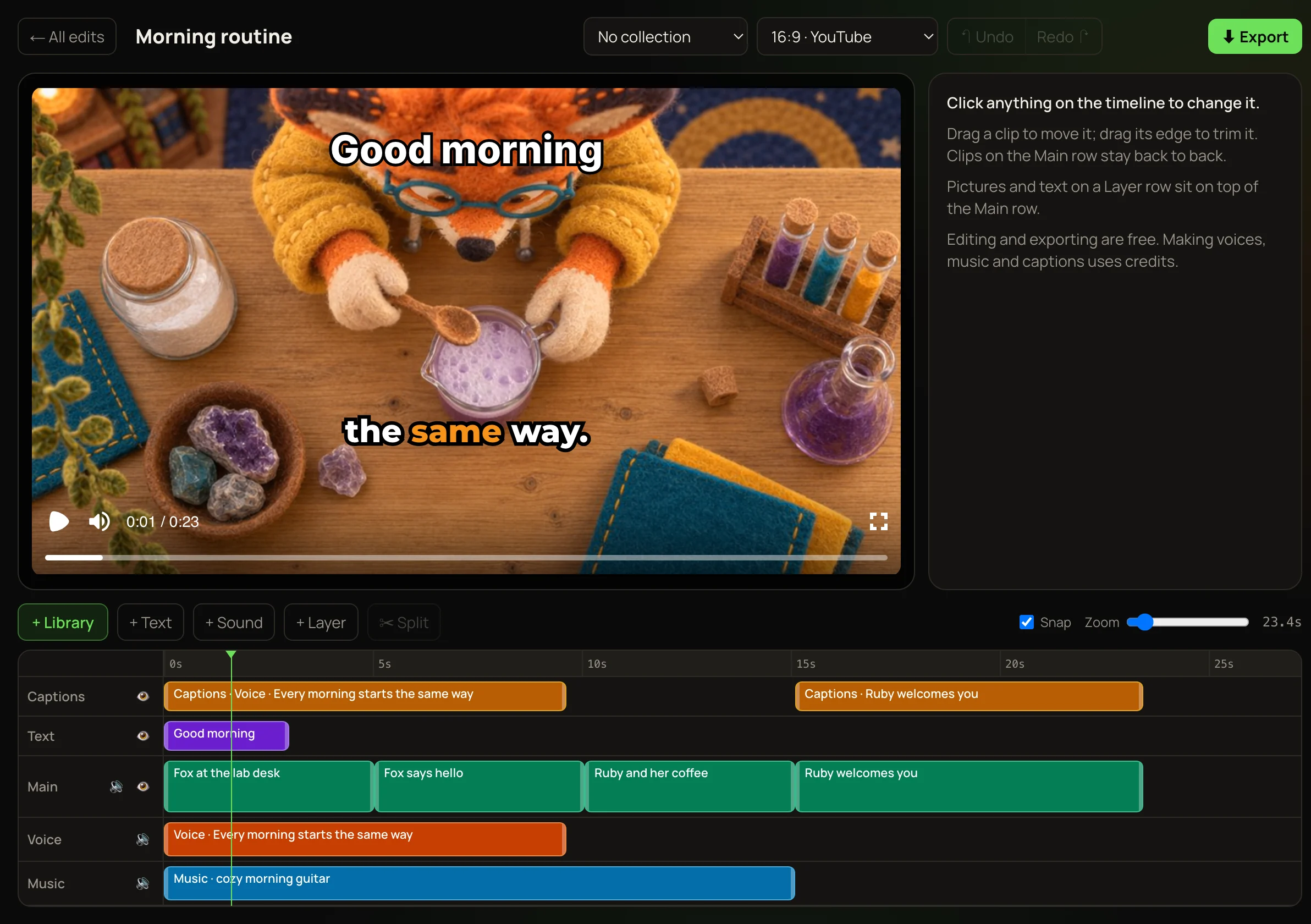
Video editor: Put clips, voice, music, text and captions together
Line up your clips on a timeline, add a voice, music, titles and captions, and export one MP4 for free.
Open the Video editor- Click Video editor in the sidebar, then + New edit.
- Click + Library to add clips, pictures and sounds. Pick the video’s shape at the top.
- Drag items on the timeline to move or trim them. Use + Text for titles.
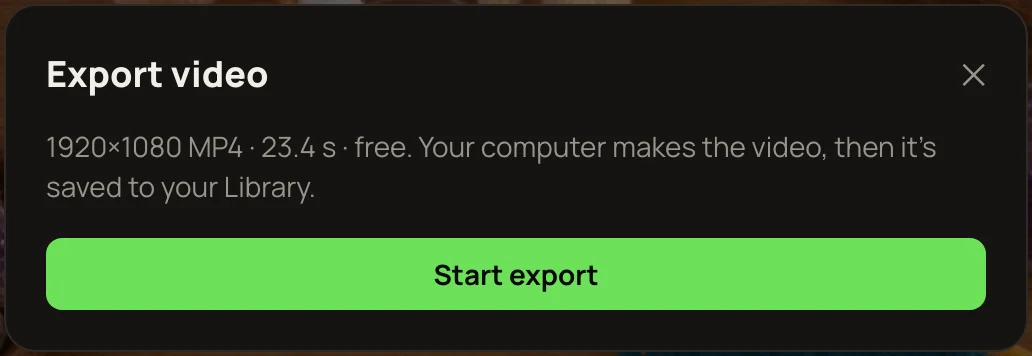
- Click ⬇ Export, then Start export. Keep the tab open until it finishes, then press ⬇ Download MP4.
The full guide is below.
The Video editor turns your clips, pictures and sounds into one finished video. Editing and exporting are free. Only making something new with AI costs credits: a voice, a music track or captions.
The Video editor comes with every plan and Super Max. It works on a computer or a tablet. On a phone, it asks you to open it on a bigger screen.
Start an edit
- 1Click Video editor in the sidebar, then + New edit.
- 2Click + Library to add clips, pictures and sounds you made here. Clips and pictures go to the end of the Main row.
- 3Pick the video’s shape at the top: 16:9 for YouTube, 9:16 for TikTok and Reels, 1:1 square, or 4:5 for Instagram posts.
On a computer or tablet, an edit opens in its own window over the page, like a Flow canvas. Drag its title bar to move it and its bottom-right corner to resize it. Double-click the title, or click ⤢ Maximize, to fill the screen; Esc puts it back. ↺ Reset returns it to its place on the page.
Every edit saves itself as you work, and lives in your Library like your flows do. ↶ Undo and Redo ↷ (or ⌘Z and ⇧⌘Z) step through your changes.
The timeline
Each row holds one kind of thing. Rows higher up show in front.
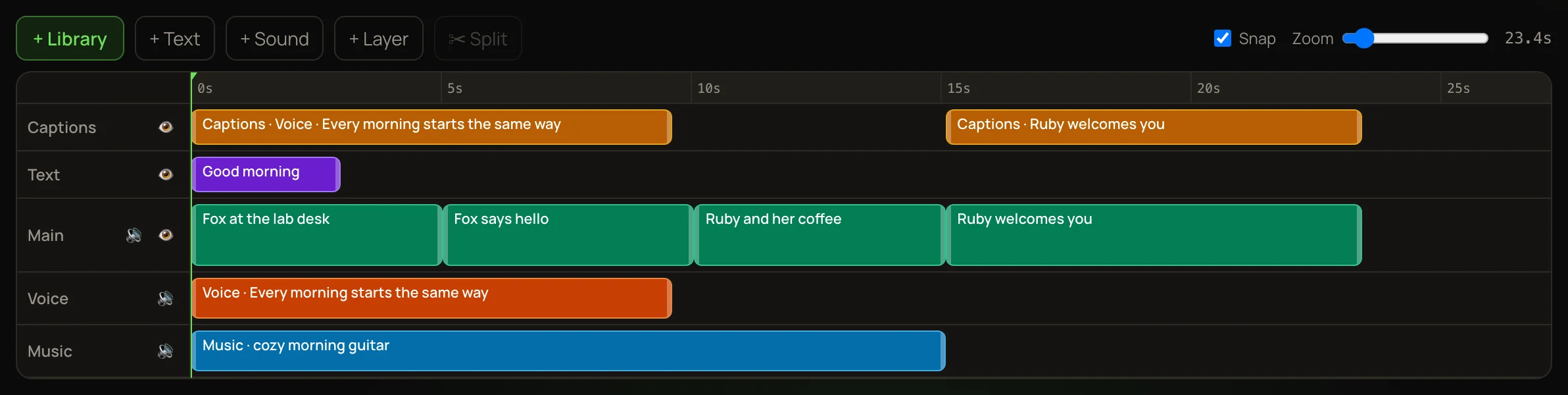
- 1Move: drag an item along its row, or onto another row of the same kind.
- 2Trim: drag an item’s left or right edge. A clip can’t be made longer than its file.
- 3Cut in two: click the ruler to put the playhead where you want the cut, click the item, then ✂ Split.
- 4Line things up: with Snap on, edges jump to other edges and to the playhead.
- 5See more or less: drag the Zoom slider.
Clean cuts in a voice or music
Voice and music items show their sound wave. The flat stretches are the pauses between words.
When you click ✂ Split on a voice or music item, the cut moves to the nearest pause, up to 0.3 seconds from the playhead, so no word is cut in half. The playhead jumps to where it cut, and a note beside ✂ Split says how far it moved. If no pause is that close, it cuts at the playhead and asks you to listen to the cut.

After cutting, you can pull the pieces apart to make longer pauses. When you drag a piece’s edge outward, it stops by itself just before the next word, so no word plays twice. To bring that sound back on purpose, keep dragging past the stop.

The 🔊 and 👁 buttons at the start of a row turn that row’s sound off, or hide it, without deleting anything.
Change a clip or a sound
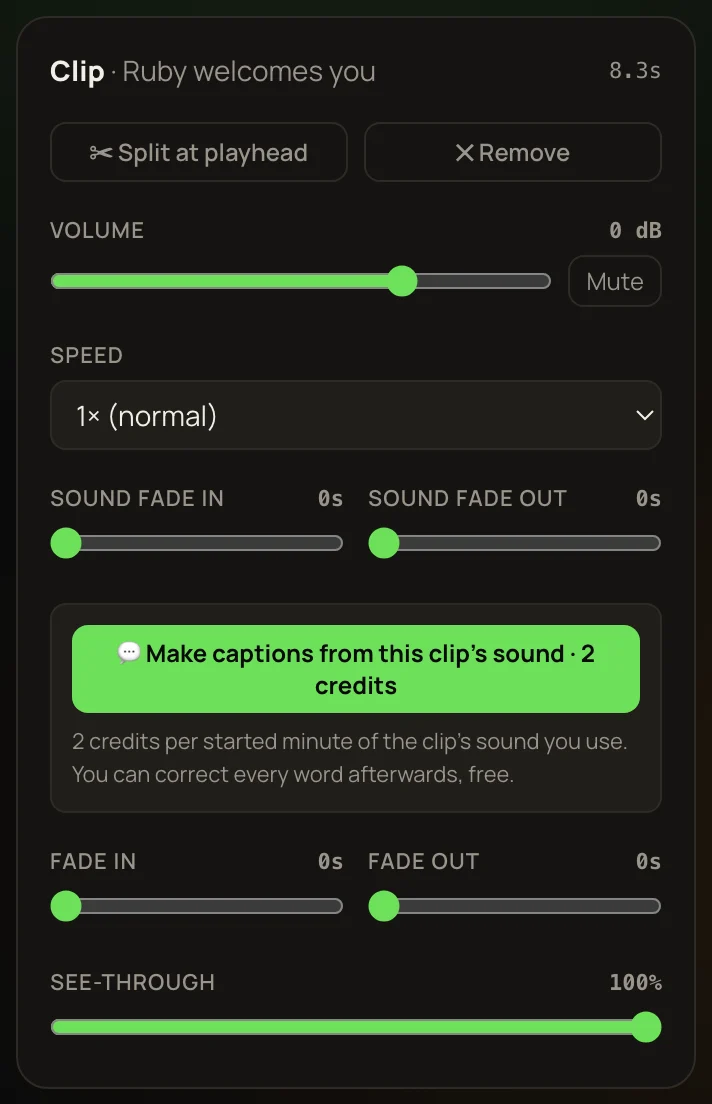
Click it on the timeline. Its settings open beside the preview.
Every clip keeps its own sound: dialogue and sound effects made with the clip play in the edit. Turn a clip’s volume down to hear only your voice or music.
Add text
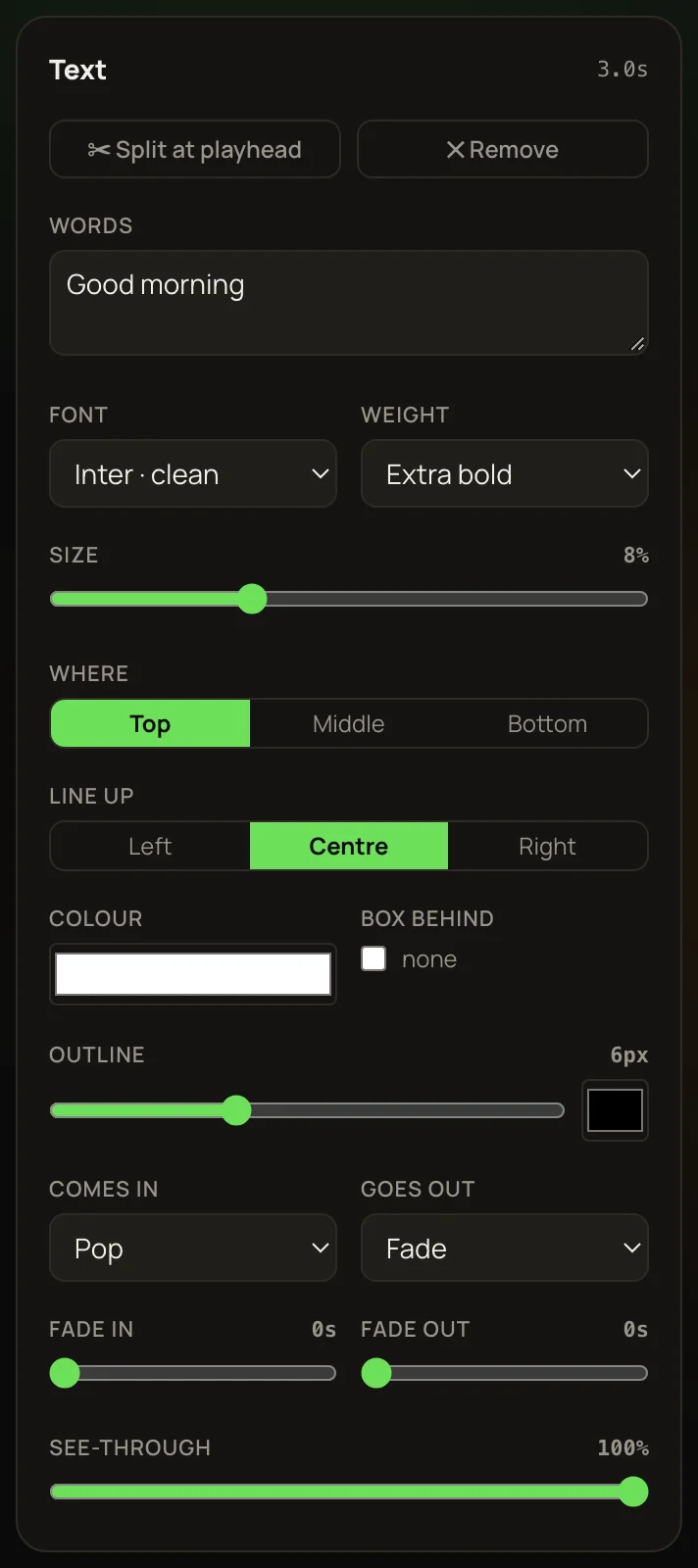
- 1Put the playhead where the text should start, then click + Text.
- 2Type your words in Words.
- 3Pick a font, weight, size, colour, an outline, and a box behind if you want one. Choose Top, Middle or Bottom.
- 4Choose how it comes in and goes out: Fade, Rise up, Drop down, Slide from left, Slide from right, Pop, Zoom, Bounce, Typewriter, Wipe.
- 5Drag its edges on the Text row to choose how long it stays.
Fonts: Inter, Montserrat, Poppins, Bebas Neue, Anton, Oswald, Playfair Display, Lobster, Permanent Marker, Roboto Mono.
Captions
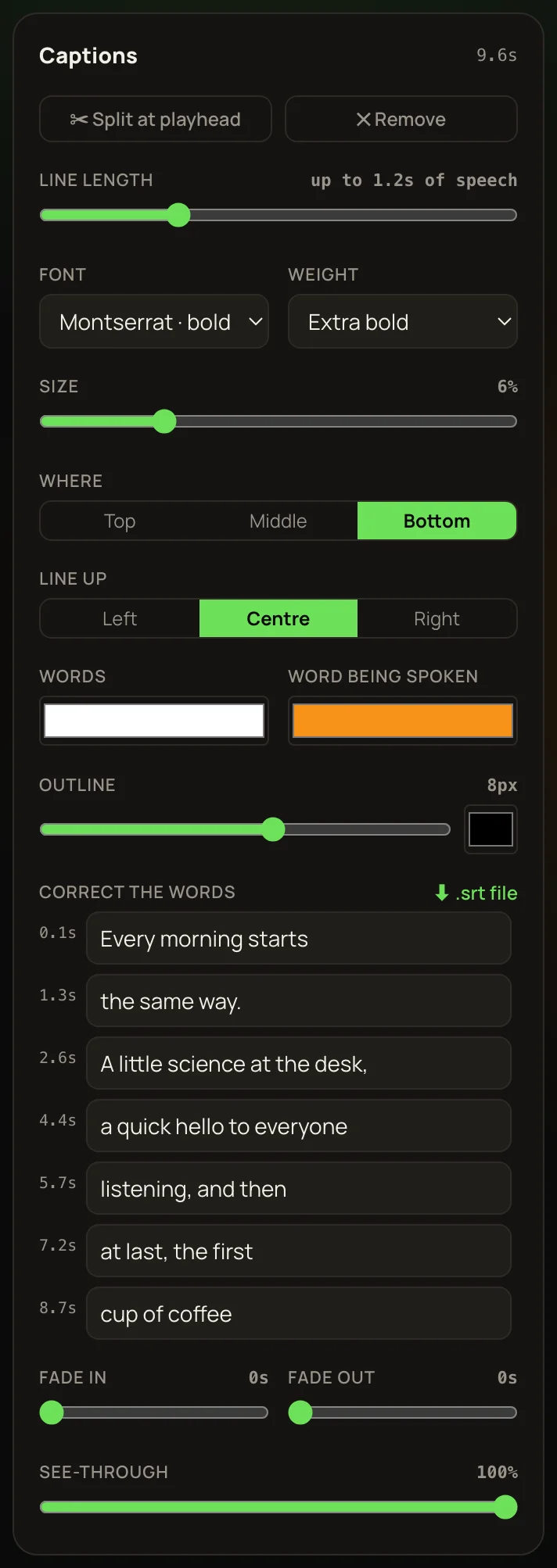
- 1Click the voice, the sound or the clip that has the speaking.
- 2In its settings, click 💬 Make captions from this sound (for a clip: …from this clip’s sound). The button shows the price first: 2 credits per started minute of sound.
- 3The captions appear on the Captions row, timed to each word. The word being spoken lights up.
Only the part you use on the timeline is listened to, so you only pay for that part. If no speech is heard, the editor says so, adds nothing, and gives the credits back.
Correct a word: click the captions, then change any line under Correct the words. Corrections are free.
Subtitle file: click ⬇ .srt file to download a subtitle file for YouTube and other sites. It holds every caption in the edit, at the right times.
Add a voice, music or your own sound
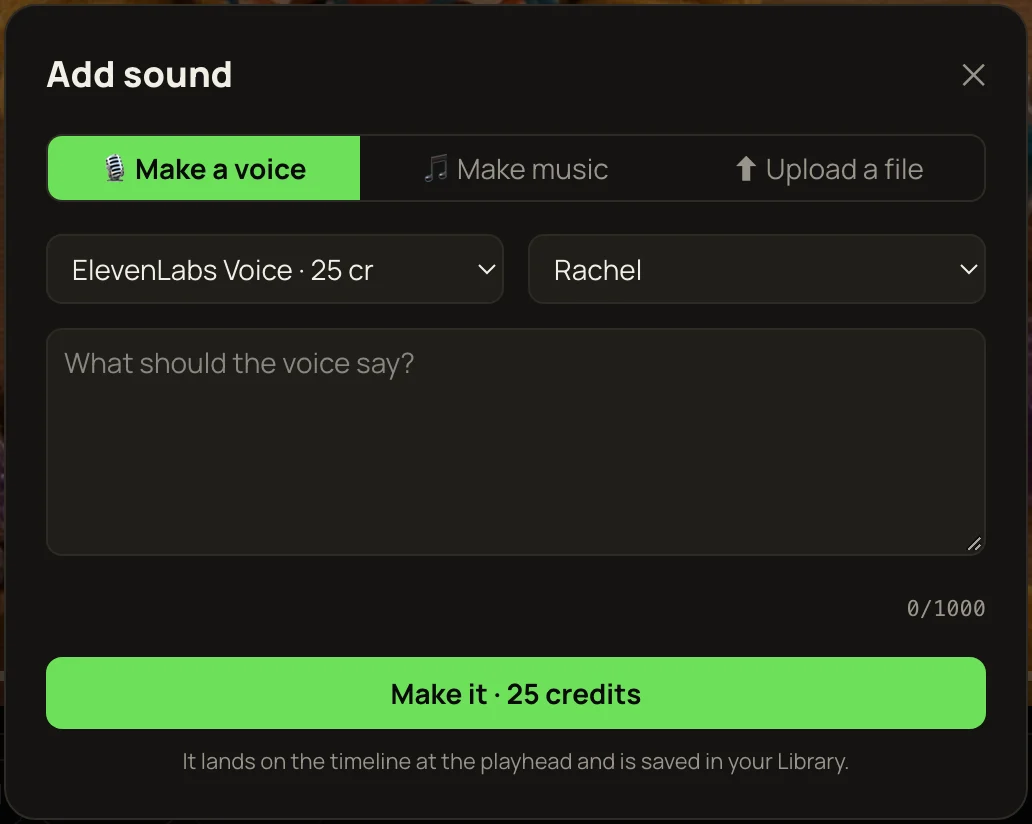
Click + Sound. Whatever you add lands on the timeline at the playhead, and is saved in your Library too.
Export
- 1Click ⬇ Export at the top right, then Start export.
- 2Keep the tab open and in front while it works. A tab in the background makes the video much more slowly.
- 3When it’s done, the MP4 is in your Library, and ⬇ Download MP4 saves a copy to your computer.
Exporting is free and has no limit: your own computer makes the video. It needs Chrome, Edge, Firefox 130 or newer, or Safari 26 or newer. Other browsers say so before you start.