FLUX Erase: remove a person or object from a photo
Paint over what you want gone and FLUX Erase fills the space with what would be behind it. No prompt needed.
Real results
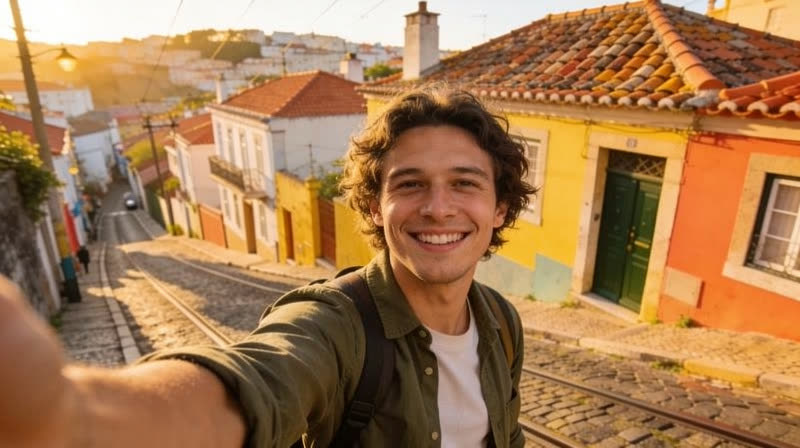
Made in solorender with these models. Nothing retouched.

Best for
- ✓Removing people, cars, signs or logos from a picture
- ✓Cleaning up a frame before you turn it into a clip
- ✓Keeping everything you didn't paint over exactly the same
Where it struggles
- —Paint a little past the edges of the thing. Leftover edges can stay behind
- —It fills with what it guesses was behind. Something very large leaves a lot to guess, so check the result closely
- —Pictures are reduced to at most 2048 pixels on the long side before the run
How to use it
Open the Edit lane, pick FLUX Erase and add your picture. Paint over what you want gone on the big canvas, choosing a small, medium or large brush. Then press Generate.
To swap something for something else, rather than remove it, use a picture editing model such as Nano Banana 2 Edit and say what to change.
Questions
How do I remove something from a photo with AI?
Pick FLUX Erase, paint over the thing you want gone, and run it. It fills the space with what would be behind it.
Do I need to write a prompt?
No. The paint marks are all it needs.
Will it change the rest of my picture?
In our run, everything outside the painted area stayed the same.
Run these for real
Every model in this guide is live in solorender. Credits never expire.
Open FLUX Erase →